Do you use Microsoft 365 Archive Mailboxes for large mailboxes?
Loading last updated info...
In Microsoft 365, user mailboxes are limited to 50GB or 100GB, depending on the licence you have. For users with lots of emails, you need a solution to keep mailboxes under the limit, without losing data or access to emails.
There are 3 ways to "archive" emails in Outlook/Exchange, however there's only one true archive option that should be used - Archive Mailboxes (also called Online Archive, or In-Place Archiving).
This video explains the 3 "archiving" options in Outlook (skip to 4:43 for Archive Mailboxes).
Video: Are you using the Right "Archive" in Outlook? (7 min)
In Summary:
❌ Archive folder - just another folder in your mailbox
❌ Auto-Archive - stored on your computer, not available online (you will lose data!)
✅ Archive Mailboxes - the right solution!
- Archive Mailboxes give you 50GB or 1.5TB(!) of extra storage, depending on your licence.
- They are stored in the cloud - no lost data
- They are accessible in Outlook on all devices
Enable Archive Mailboxes
- Go to the Exchange admin center | Mailboxes
- Select a user
- Go to Others | Manage mailbox archive
- Change Mailbox archive status to Enabled
- (Optional) Add a name - if no name is added, it will default to Online Archive
- Click Save
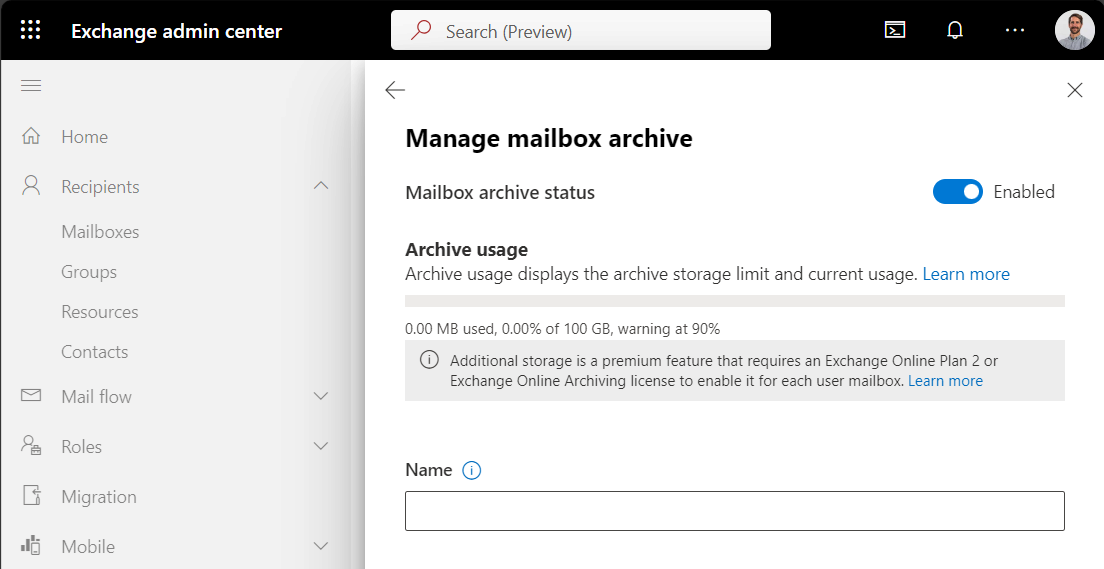
Figure: Exchange admin center | Manage mailbox archive
Users will see their new Online Archive as a separate mailbox in Outlook
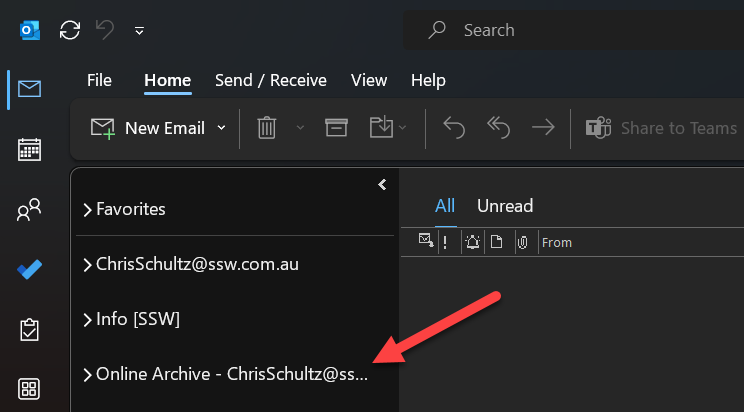
Figure: Outlook | Online Archive mailbox
Archive Policies
By default, emails will be moved to the archive mailbox after 2 years. Users can select a different archiving policy per folder by going to the Outlook folder Properties | Policy.
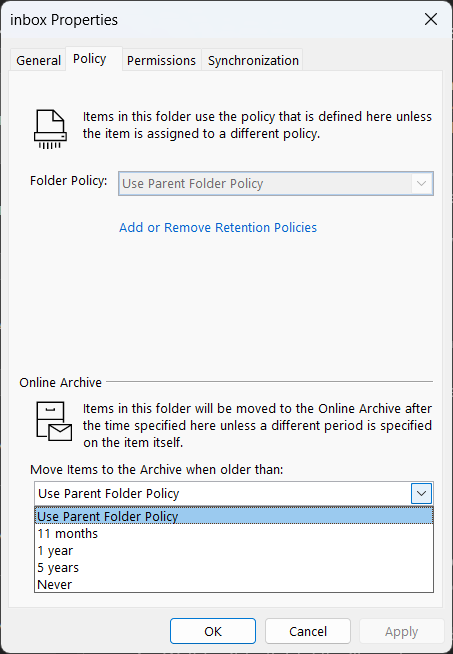
Figure: Default Online Archive policy options
Admins can edit the default policy, or add new policy options in Microsoft Purview | Data lifecycle management | Exchange (legacy)
- Use the MRM Retention Tags tab to create archive time-frame options, e.g. archive after 3 years
- Use the MRM Retention Policies tab to apply default and/or optional policies to users
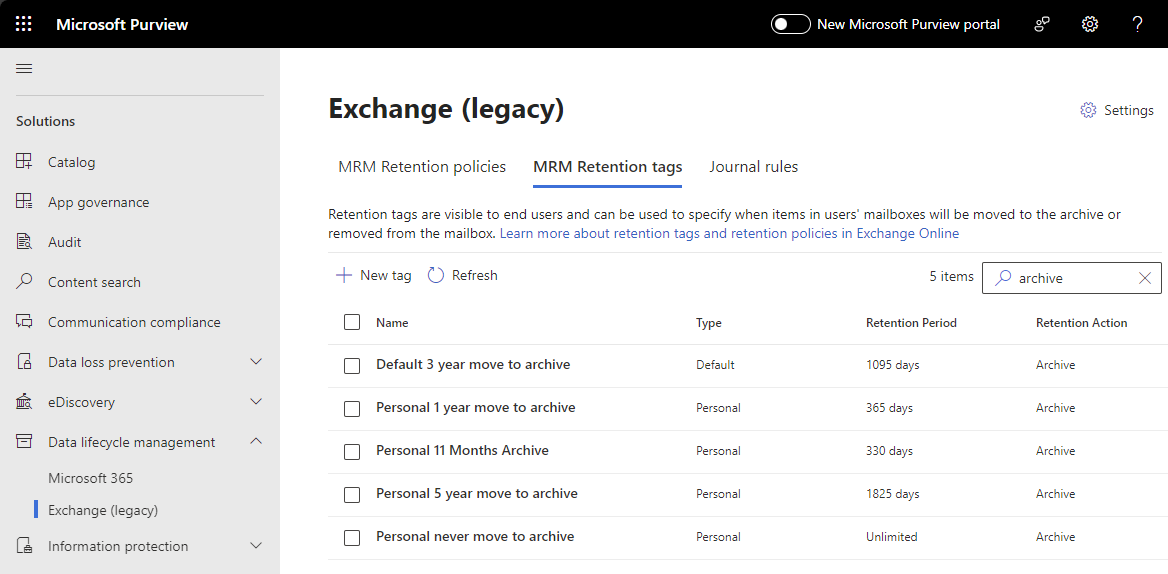
Figure: Microsoft Purview | MRM Retention tags
For more information see Microsoft's documentation: https://learn.microsoft.com/en-us/purview/archive-mailboxes?WT.mc_id=M365-MVP-33518