Do you know how to create Azure resources?
Loading last updated info...
We've been down this road before where developers had to be taught not to manually create databases and tables. Now, in the cloud world, we're saying the same thing again: Don't manually create Azure resources.
Manually Creating Resources
This is the most common and the worst. This is bad because it requires manual effort to reproduce and leaves margin for human error. Manually provisioning resources can also lead to configuration drift, which is to say that over time it can be difficult to keep track of which deployment configurations were made and why.
- Create resources in Azure and not save a script
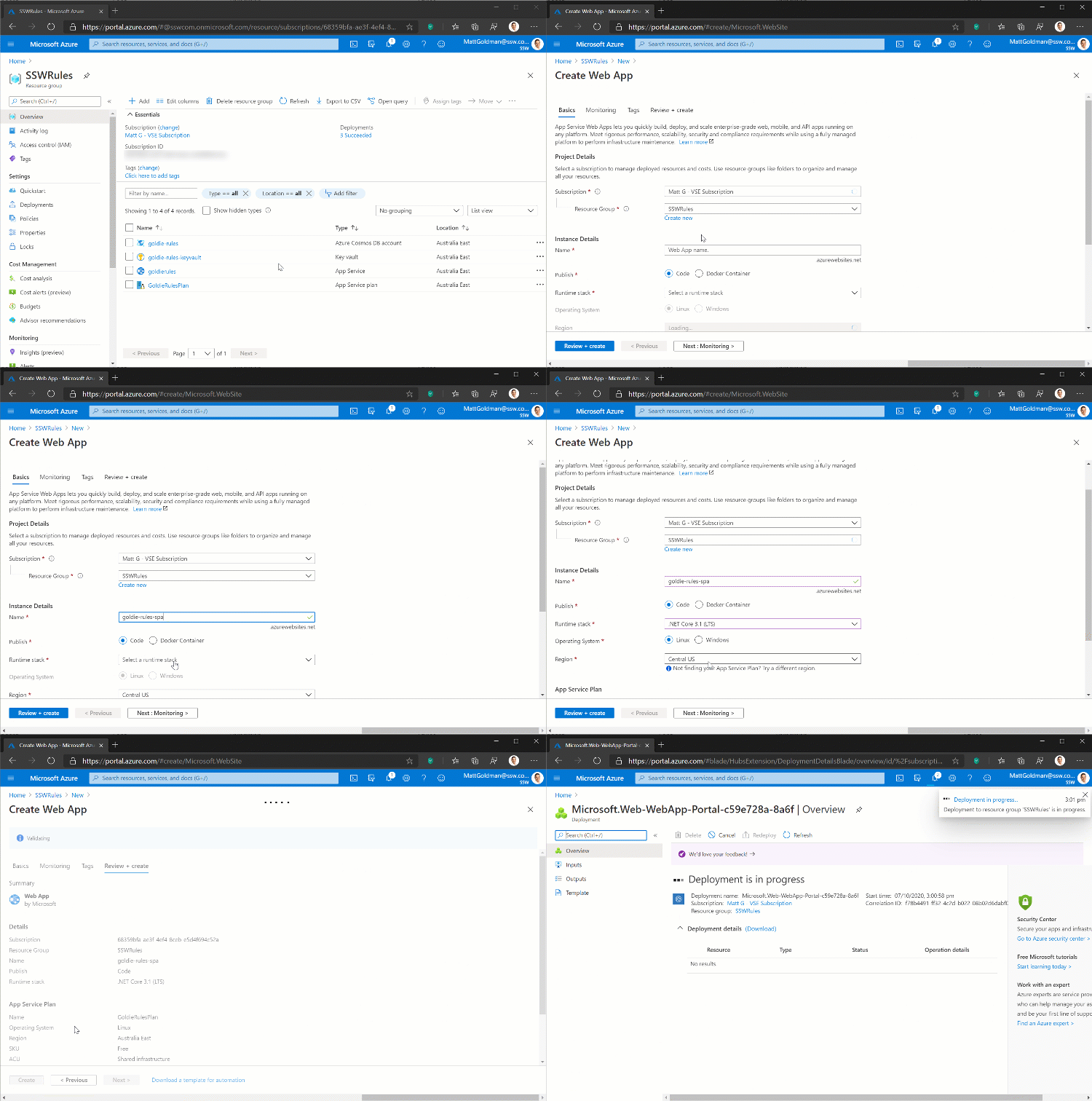
❌ Figure: Figure (animated gif): Bad example - Creating resources manually
Manually creating and saving the script
Some people half solve the problem by manually creating and saving the script. This is also bad because it’s like eating ice cream and brushing your teeth – it doesn’t solve the health problem.
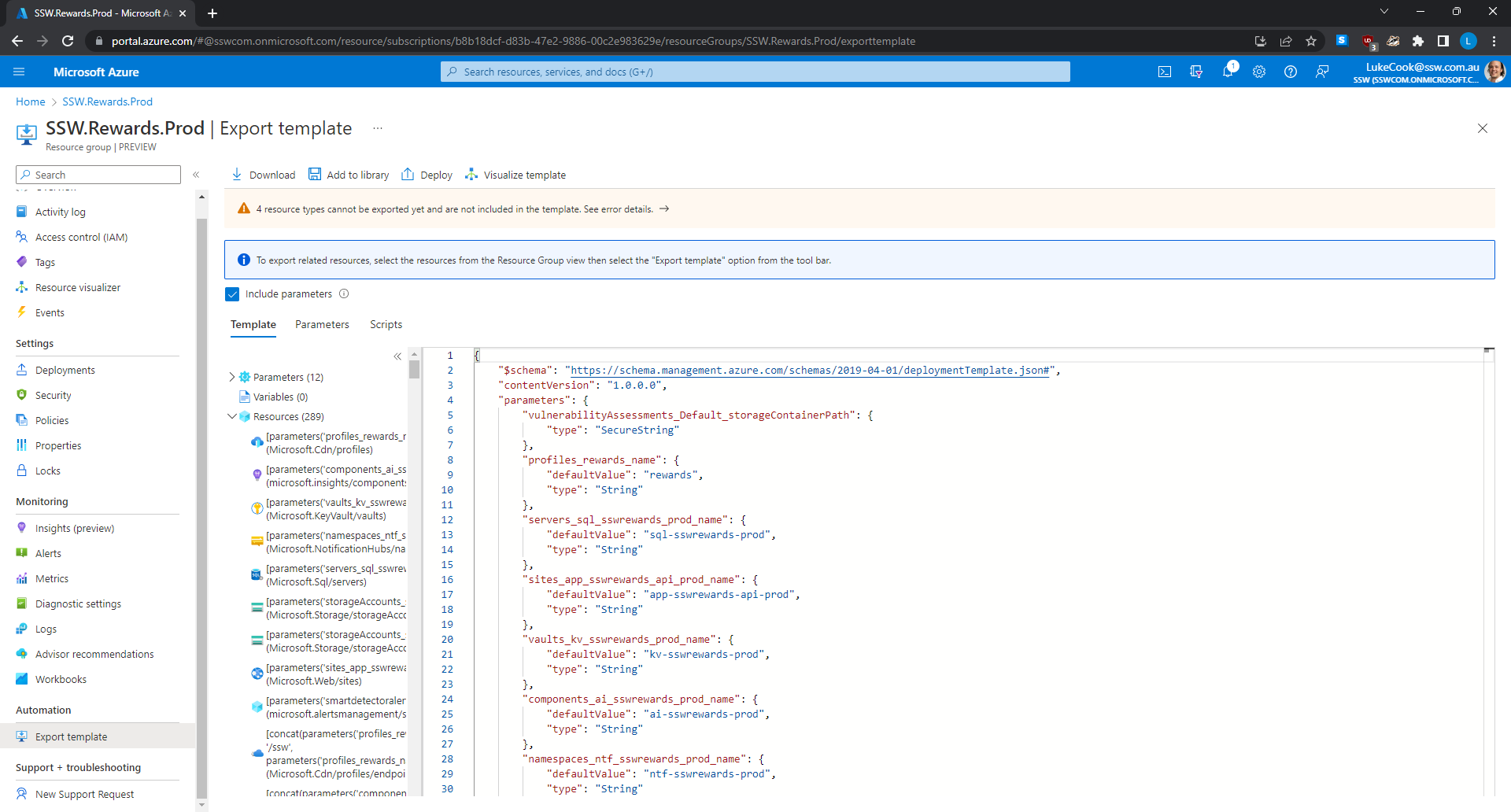
❌ Figure: Bad example – Exporting your Resource Group as an ARM template defined in JSON
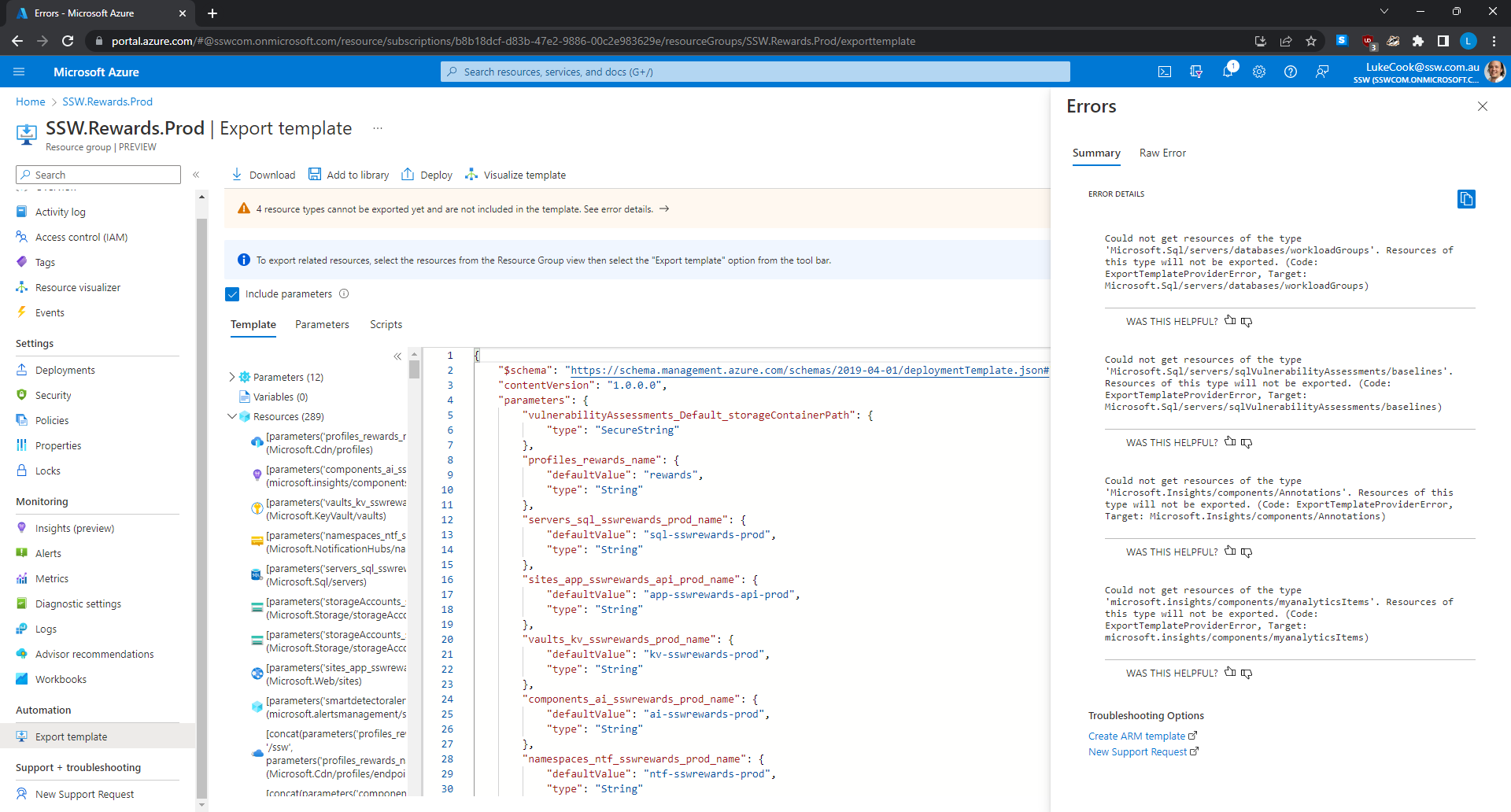
❌ Figure: Warning - The templates are crazy verbose. They often don't work and need to be manually tweaked
Tip: Save infrastructure scripts/templates in a folder called 'infra'.
So if you aren't manually creating your Azure resources, what options do you have?
Option A: Farmer
Farmer - Making repeatable Azure deployments easy!
- IaC using F# as a strongly typed DSL
- Generates ARM templates from F#
- Add a very short and readable F# project in your solution
- Tip: The F# solution of scripts should be in a folder called Azure
Figure: Farmer was our favourite until Bicep was supported by Microsoft
Option B: Bicep by Microsoft (recommended)

Bicep - a declarative language for describing and deploying Azure resources
- Is free and fully supported by Microsoft
- Awesome extension for VS Code to author ARM Bicep files ⭐️
- Under the covers - Compiles into an ARM JSON template for deployment
- Improves the repeatability of your deployment process, which can come in handy when you want to stage your deployment configuration
- Much simpler syntax than ARM JSON
- Handles resource dependencies automatically
- Private Module Registries for publishing versioned and reusable architectures
- No need for deploy scripts! There's an bicep-deploy GitHub Action from Microsoft to make it easy add deployments to your workflows
Tip: If you are assigning any role assignment using bicep, make sure it doesn't exist before. (Using Azure Portal)
Announcement info: Project Bicep – Next Generation ARM Templates
Example Bicep files: Fullstack Webapp made with Bicep
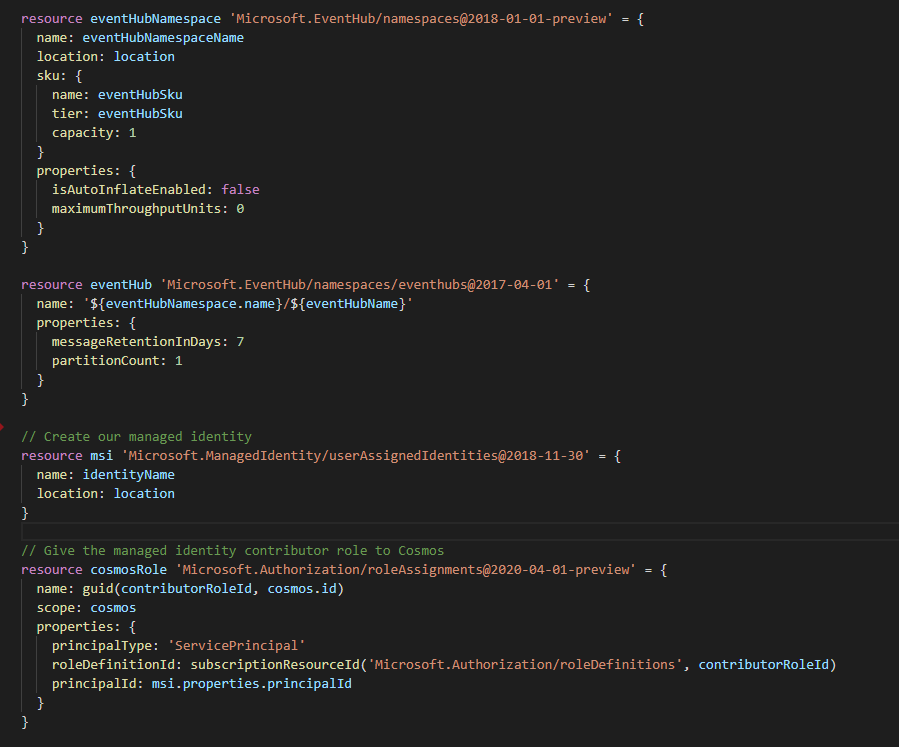
✅ Figure: Good example - Author your own Bicep templates in Visual Studio Code using the Bicep Extension
Option C: Enterprise configuration management $$$
The other option when moving to an automated Infrastructure as Code (IaC) solution is to move to a paid provider like Pulumi or Terraform. These solutions are ideal if you are using multiple cloud providers or if you want to control the software installation as well as the infrastructure.
- Both tools are great and have free tiers available
- Paid tiers provide more benefits for larger teams and helps manage larger infrastructure solutions
- Terraform uses HashiCorp Configuration Language HCL
- It's like YAML but much more powerful
- Pulumi uses real code (C#, TypeScript, Go, and Python) as infrastructure rather than JSON/YAML
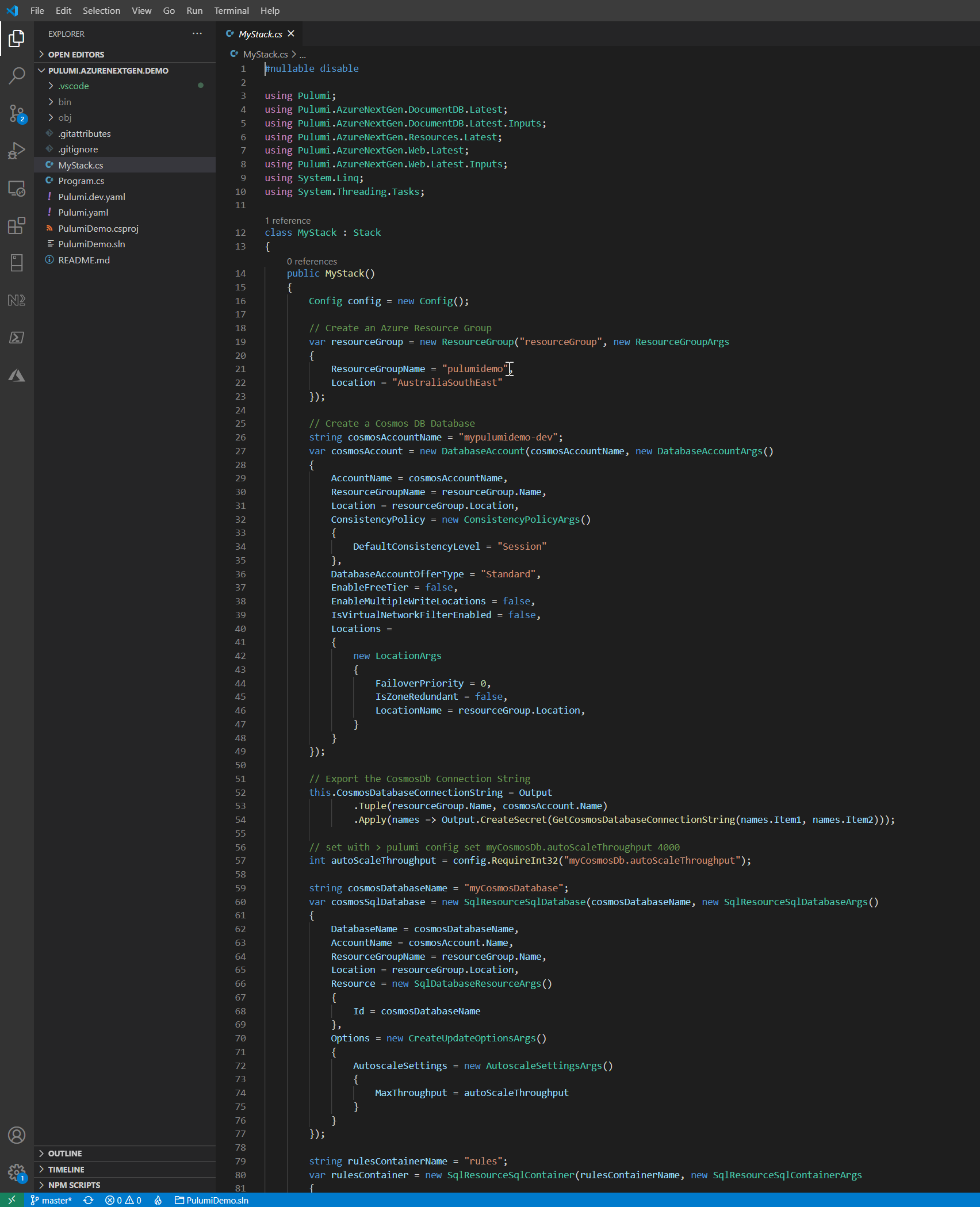
✅ Figure: Good example - Code from the Pulumi Azure NextGen provider demo with Azure resources defined in C#
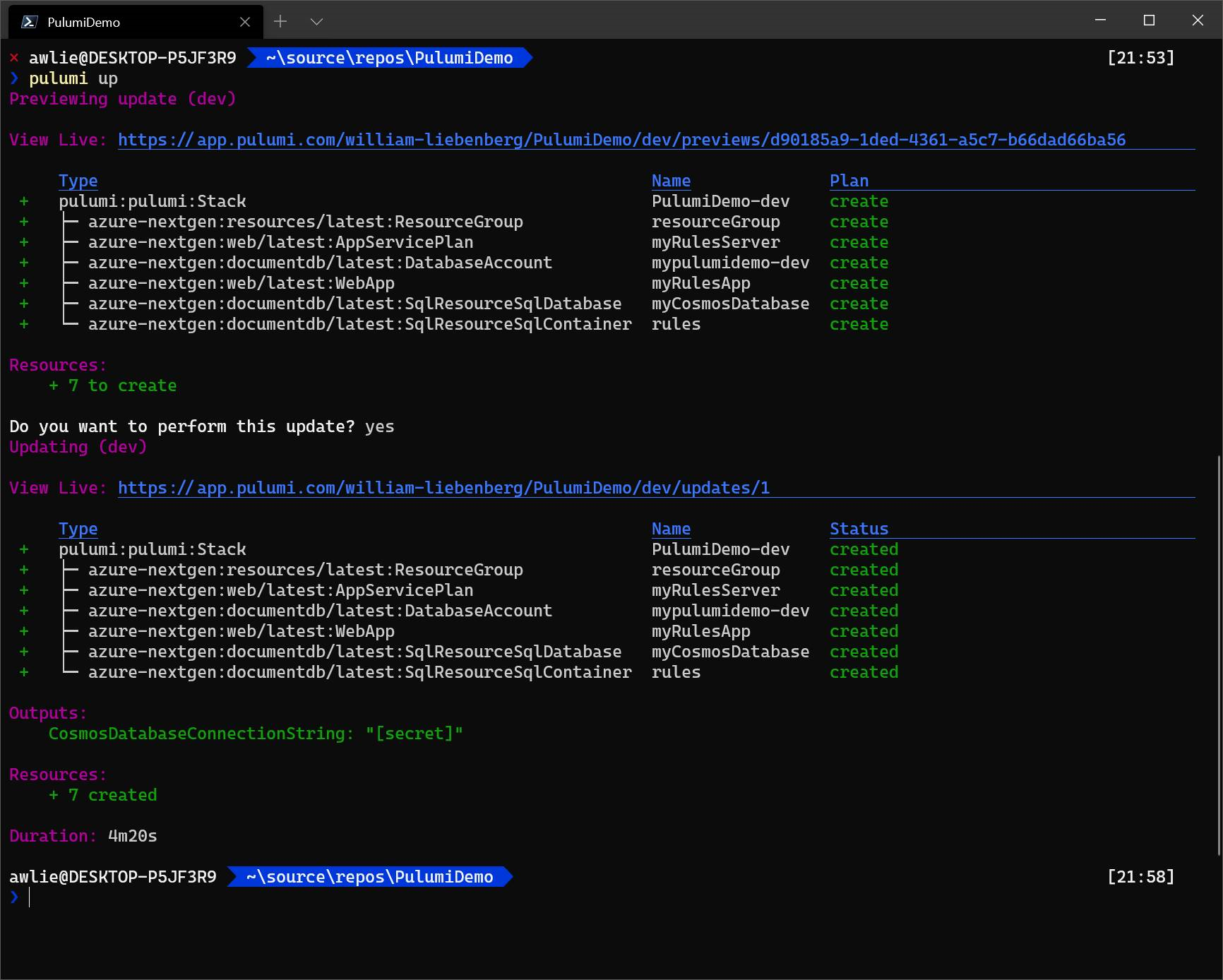
✅ Figure: Good example - From the console simply run 'pulumi up' to deploy your resources to Azure
Tip: After you’ve made your changes, don’t forget to visualize your new resources.