Do you know the Power BI version control features?
Loading last updated info...
To follow best practices for version control for Power BI reports you must know about the following features:
- Requires either Fabric capacity or a Power BI Premium per User license
- Currently only integrates with Git repos in Azure DevOps
Video: Empower every BI professional to do more with Microsoft Fabric | OD06 (Watch from min 5:00 to 13:00)
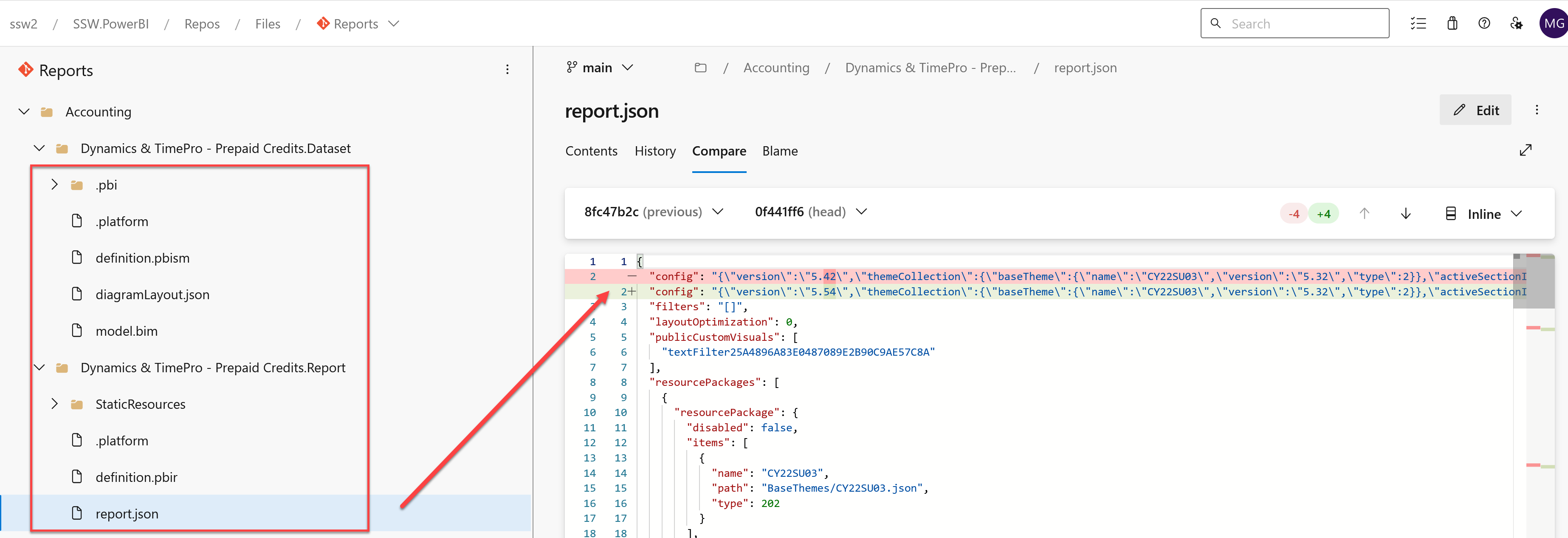
Figure: Once version control has been setup you can see more clearly what changed in the report
- Convert all your Power BI reports to the PBIP format
- First enable Power BI Projects in Power BI Desktop - File | Option Settings | Options | Preview features | Power BI project (.pbip) save option
- Second "Save As" all your .pbix files as .pbip
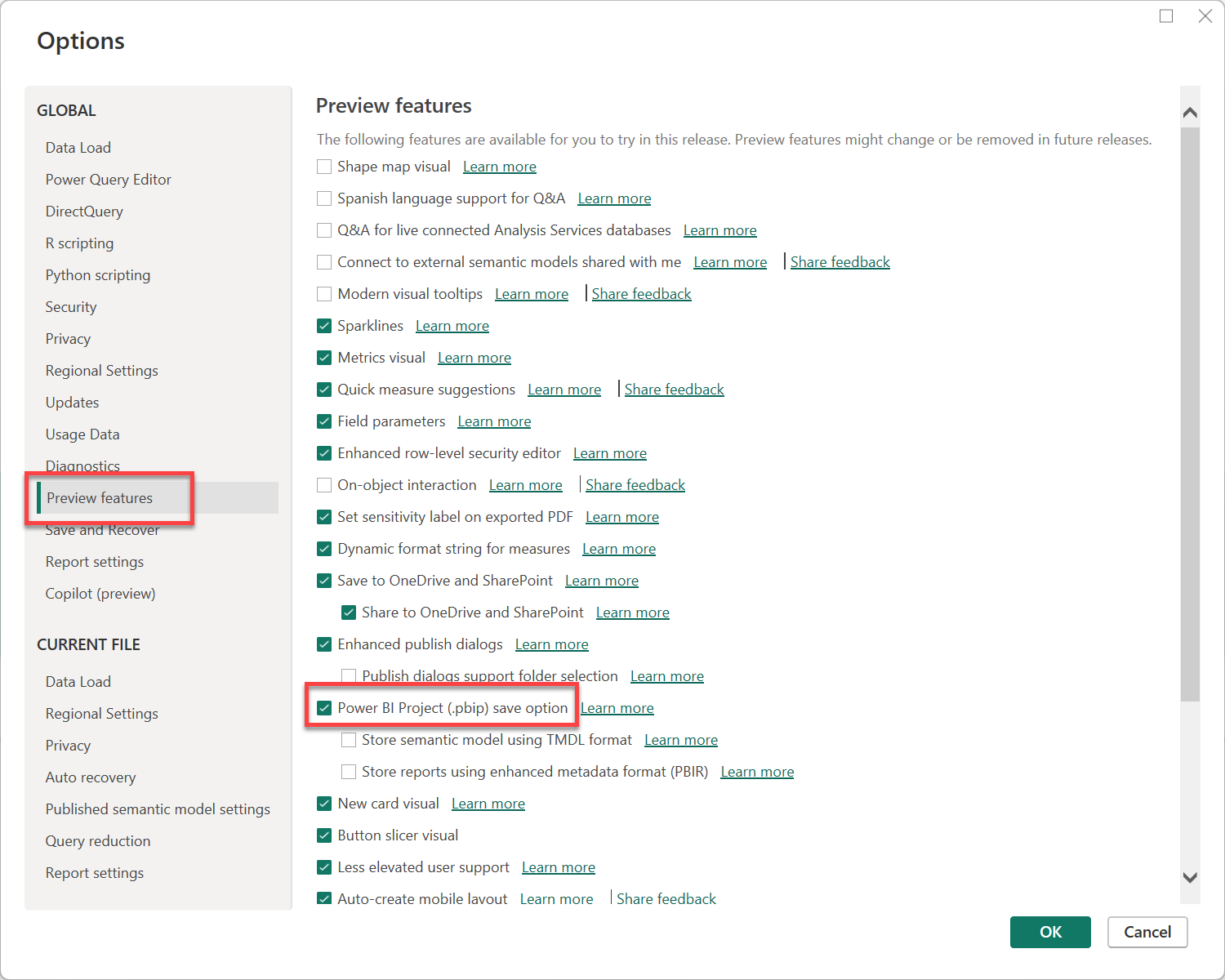
Figure: Enable PBIP format in Power BI Desktop
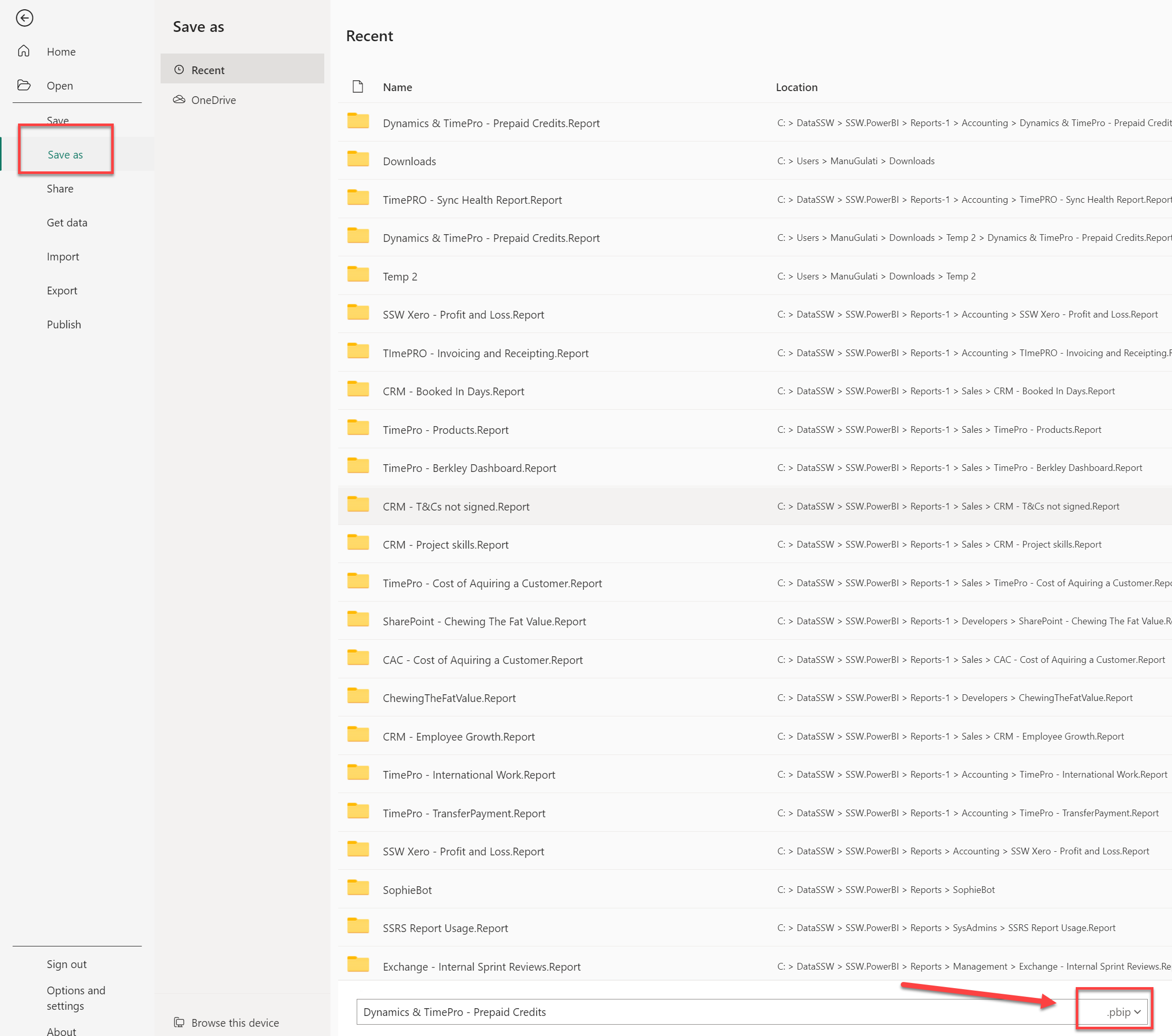
Figure: Convert all .pbix files to PBIP format
- Converting reports to the PBIP format decomposes it into the following artifacts.
- A Dataset folder, which contains files and folders representing a Power BI dataset
- A Reports folder, which contains the report settings, metadata for custom visuals, etc
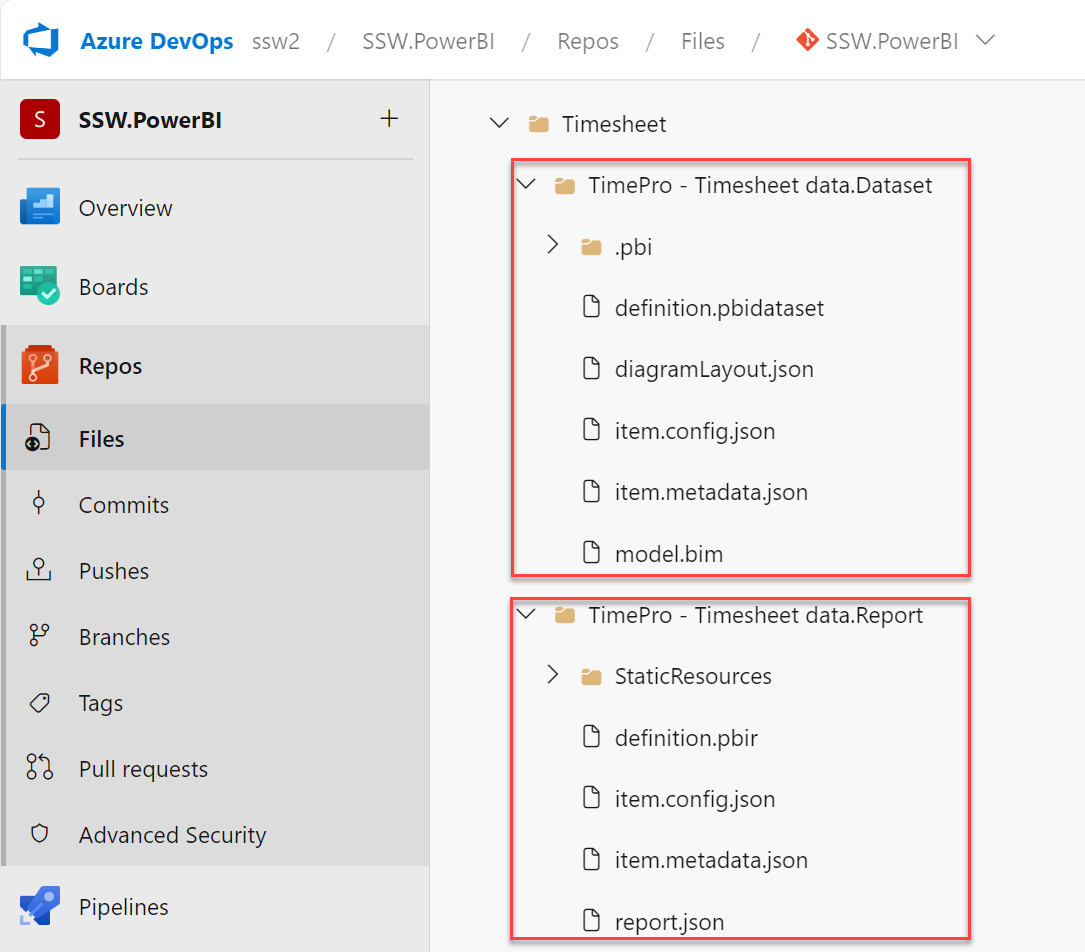
Figure: PBIP artifacts
- Commit the PBIP artifacts into a Git repository in an Azure DevOps project. Note, as of this writing Power BI's Git integration only works with Azure DevOps.Note: Once you convert the report Power BI Desktop will save a copy of the data into a file called cache.abf which gets stored in a ".pbi" folder inside the Dataset folder. This file should not be saved in version control. You can create a .gitignore file to prevent Git from committing it to the repository.
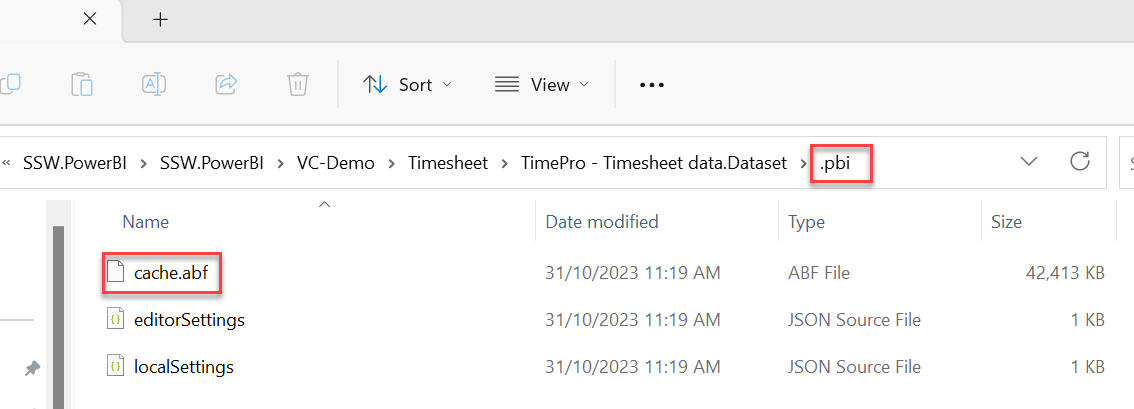
Figure: cache.abf
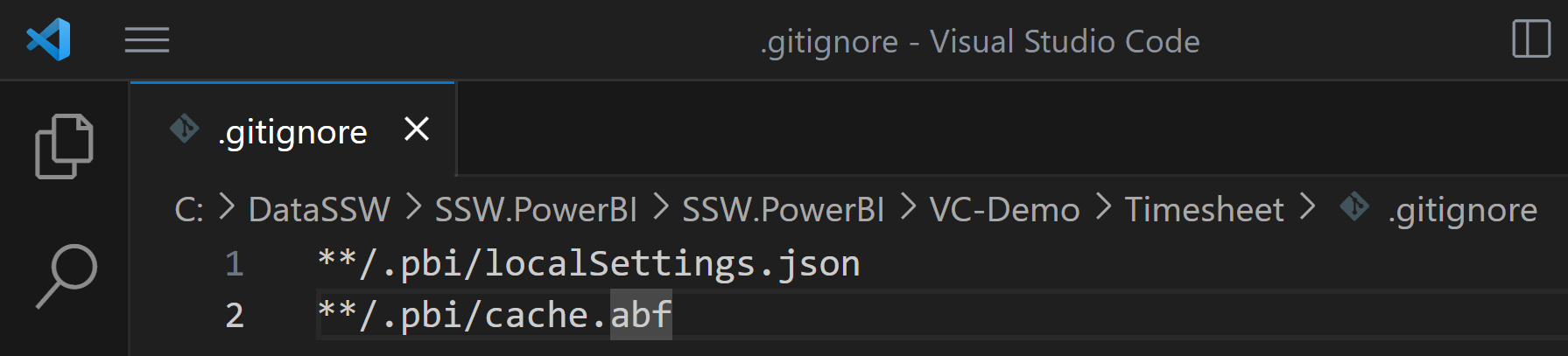
Figure: The .gitignore file