Do you make sure all software uses English as default on language settings?
Loading last updated info...
When dealing with western people, you want to avoid having screen captures showing foreign characters.
Let us look at some examples:
Google Chrome
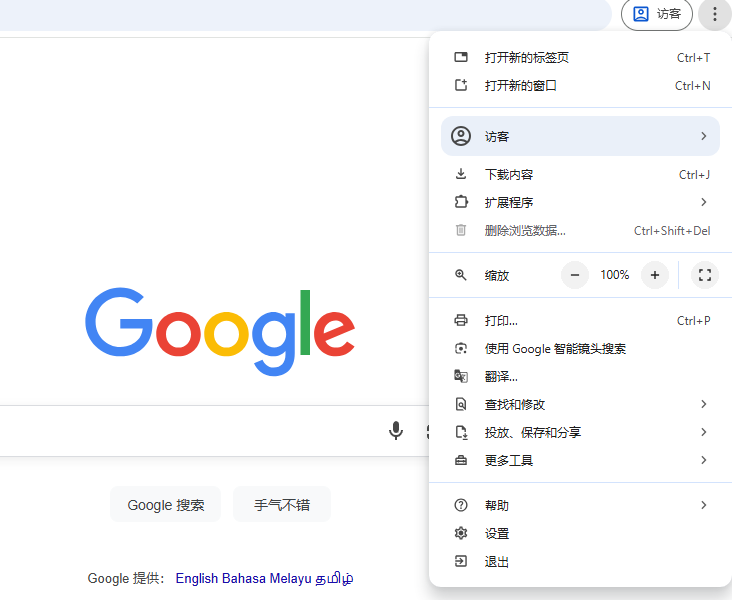
❌ Figure: Bad example - Chrome using Chinese as its language setting

✅ Figure: Good example - Chrome using English as its language setting
How to fix on a PC?
You want all screenshots you take to be showing English. Most of the time it is as simple as going Tools | Options | Language | Default Language = English (US).
In Chrome, you can follow these steps directly:
- Three dots bar at the top right of the Chrome window:
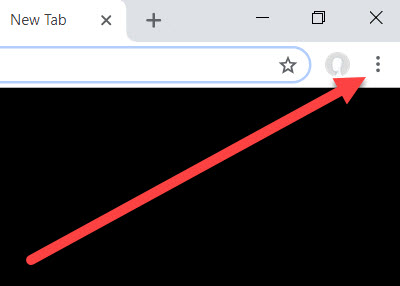
Figure: Blank Chrome page showing the 'Settings' button, 3 small dots
- Click on Settings:
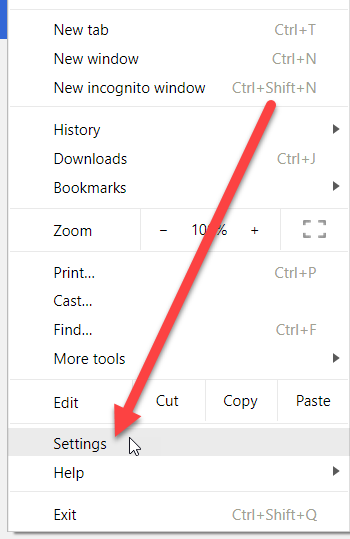
Figure: Showing the 'Settings' page
- Click on Languages:
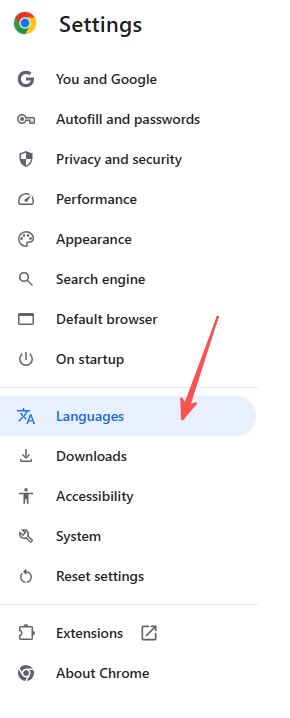
Figure: Languages tab in Settings
- Click on 'Add Languages':
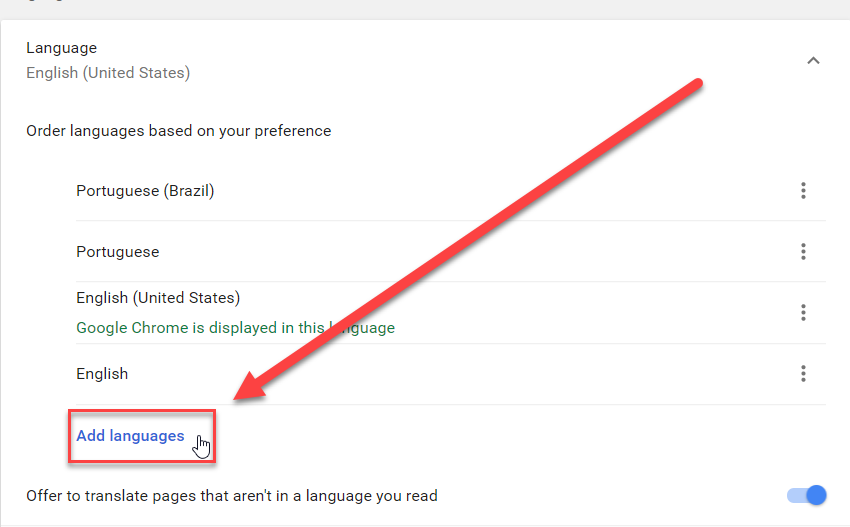
Figure: Add Languages to your current Chrome
- Move English to the top
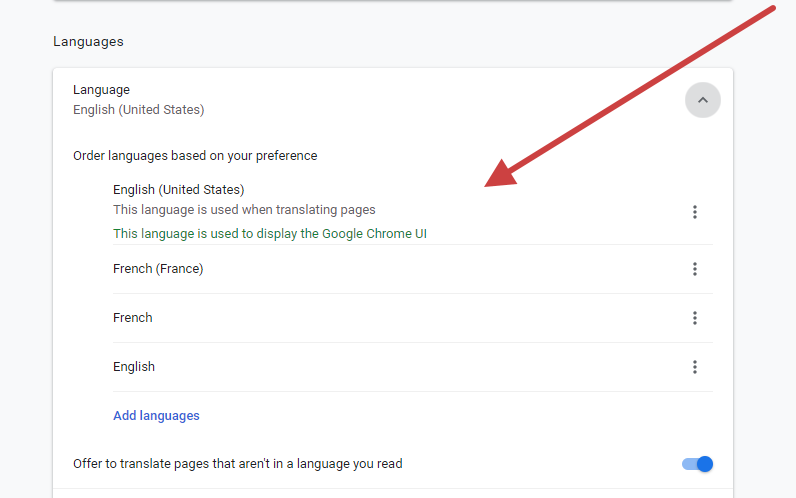
Figure: Move English to top
How to fix on a Mac?
- Change the language in System Preferences. Go to Apple menu | System Preferences | Language & Region
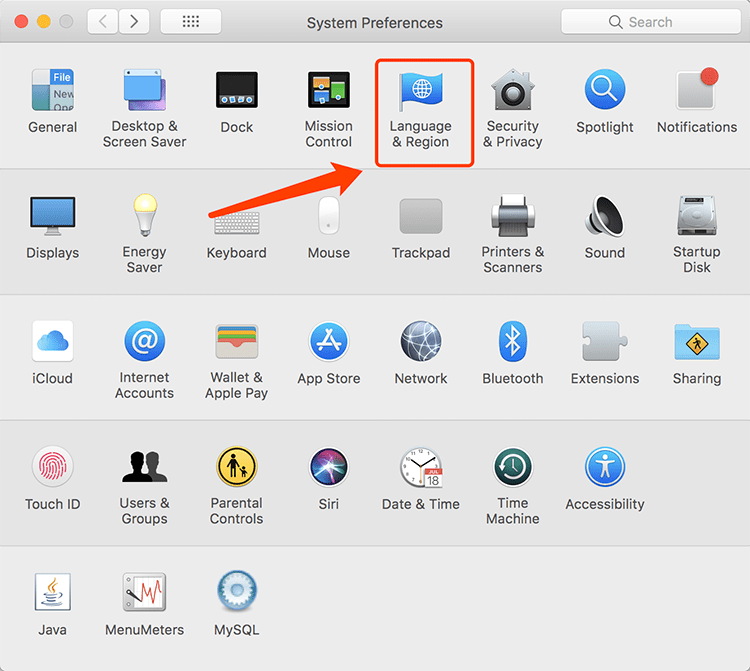
Figure: In macOS it’s simple to change to English
- In Preferred languages, add English and select it as primary language
- Reboot the system and verify that English is now the primary language for all desktop applications
Google account
You should also change your Google language to English as well. If it is not already, take a look at these steps:
- Go to google.com
- Click on
Sign-InorMy Accountif you are already signed in
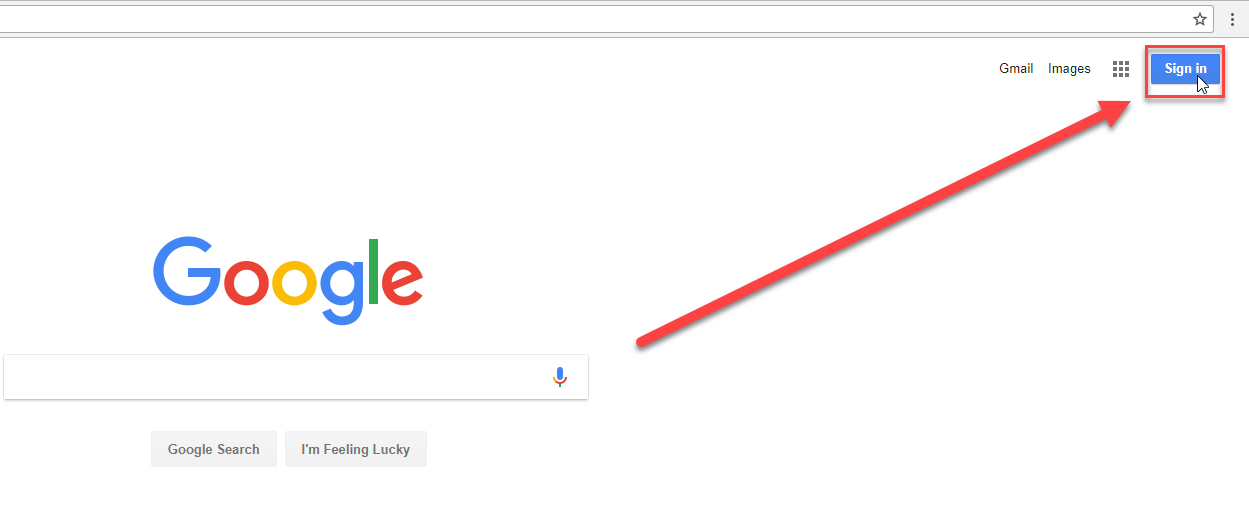
Figure: Google page without an account
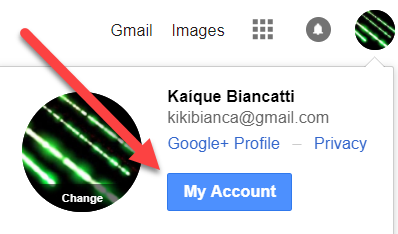
Figure: Google page with an account
- Search for 'Language':

Figure: Search for 'language'
- Now click
Languageand search for English
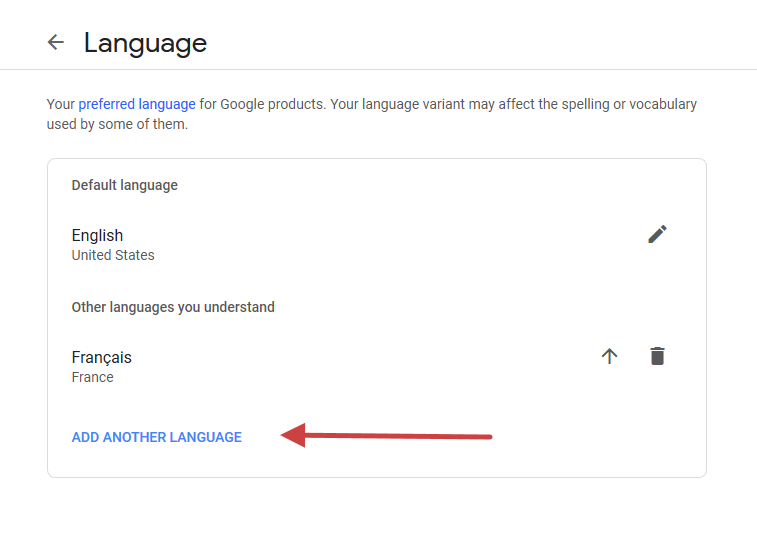
Figure: Language picker
- Move English up to default language by clicking on the arrow
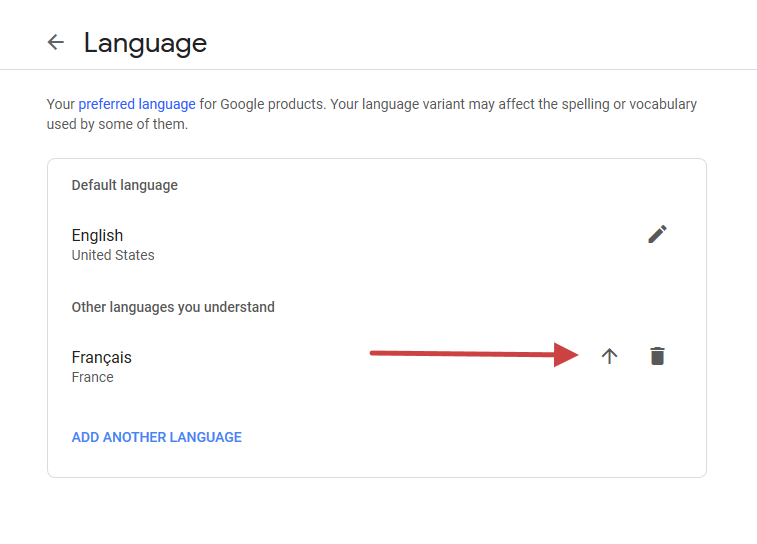
Figure: Move up English
- Done! You changed your language to English
Gmail account
- Click on the cog then Settings
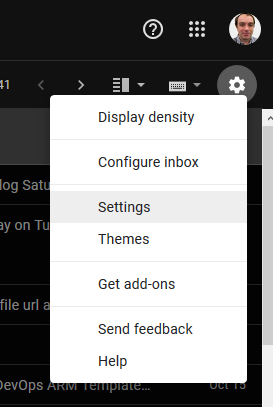
Figure: Access to Settings on Gmail
- Set language to English(US)
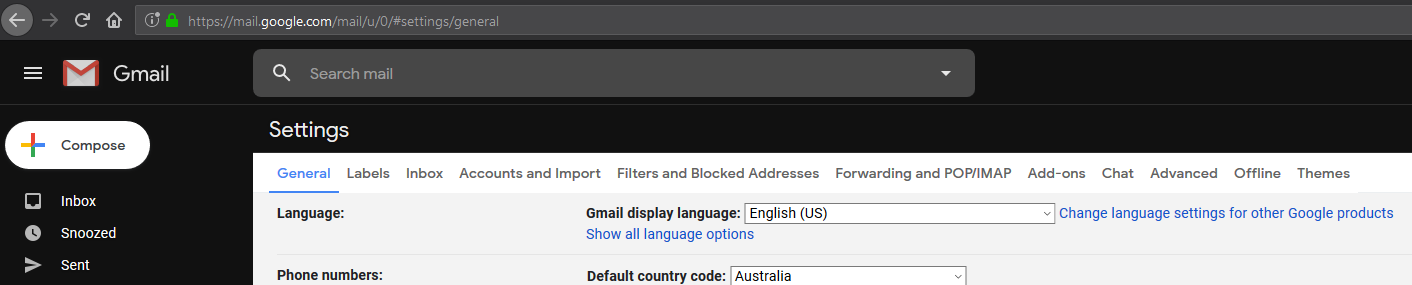
Figure: Change language setting
- Scroll down and click on 'Save Changes'. Done!
Mozilla Firefox
- Go to Options
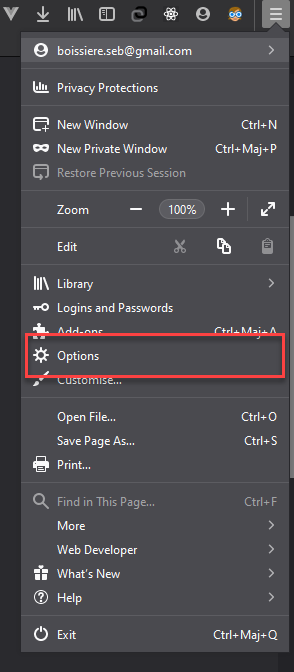
Figure: Access to Firefox options
- Set Display language to English (United States), you may have to restart Firefox to apply the change
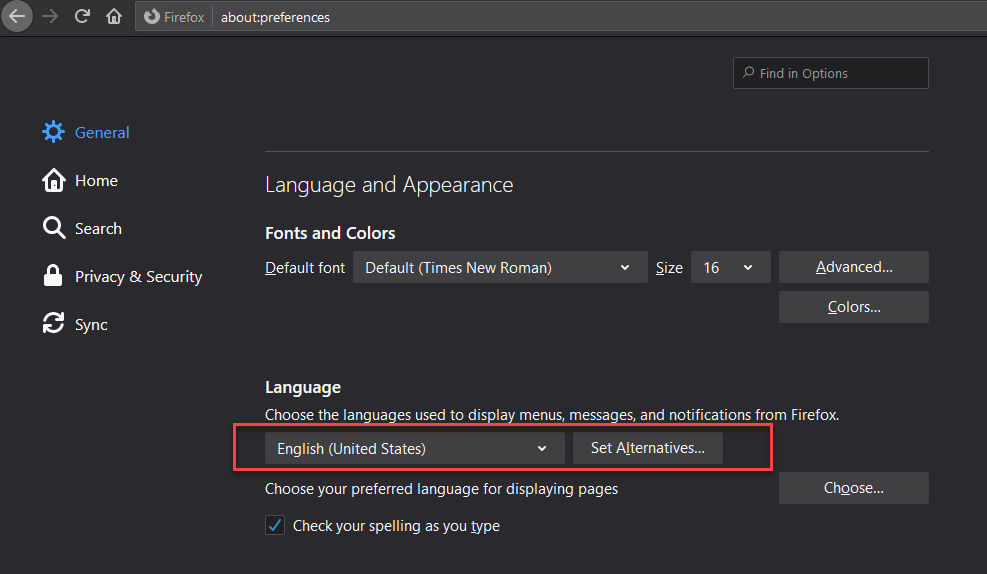
Figure: Language settings
- Choose your preferred language for displaying pages. Add English (United States) and move it to the top
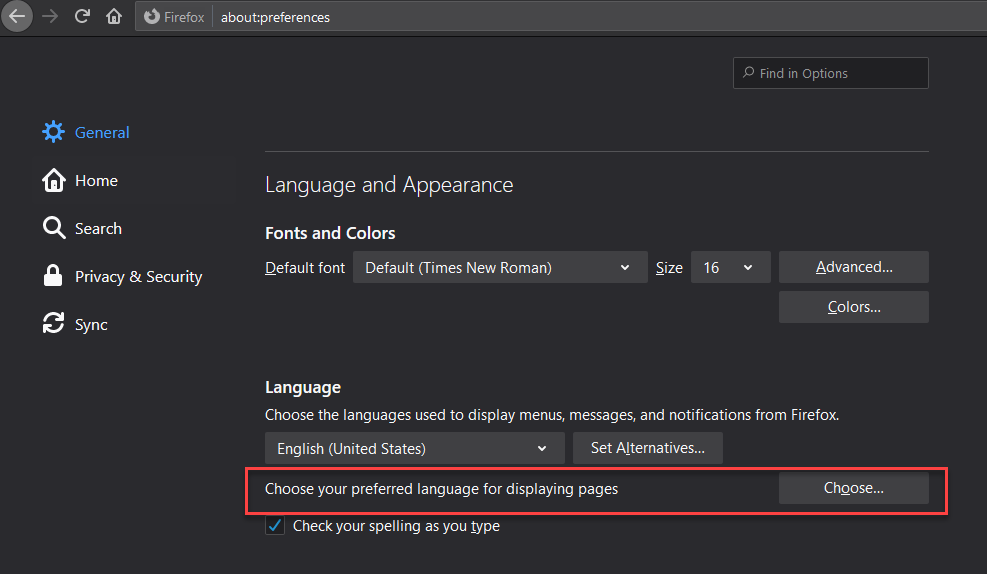
Figure: Click Choose to change your preferred language
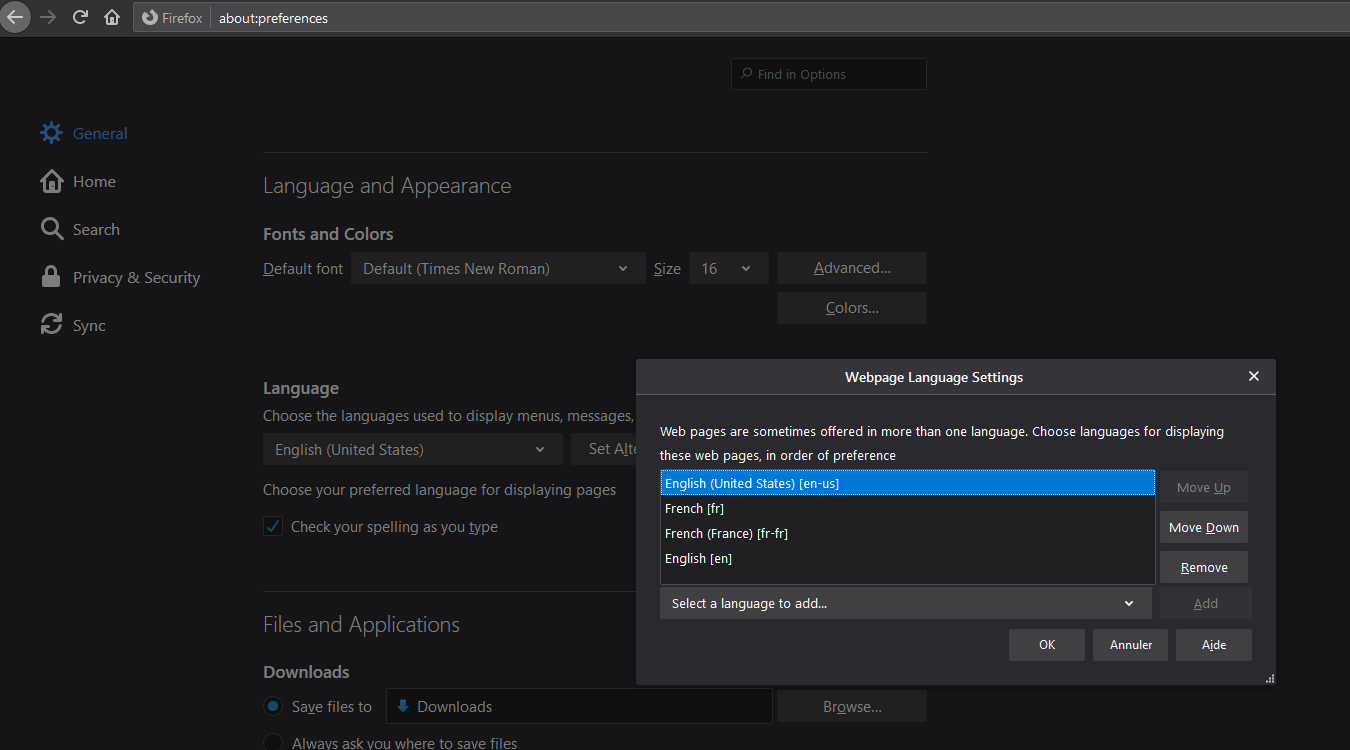
Figure: Add English (United States) to your preferred language for displaying pages
- Done!
Microsoft Azure
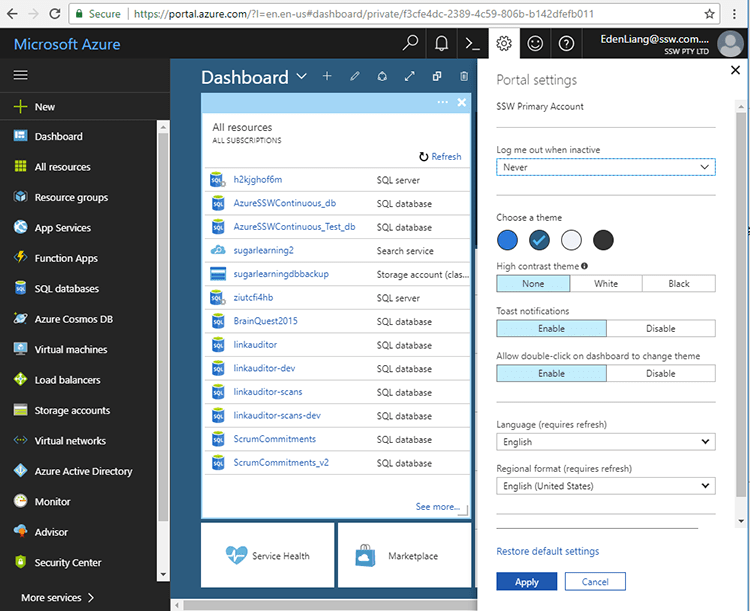
Figure: In Azure, it is as simple as clicking on the Cog icon
Office 365 (rich client)
Some cheap versions of Microsoft Office 365 only allow Chinese, so you need to uninstall and install the English version. It requires you to download a language pack which is a bit more of a hassle...
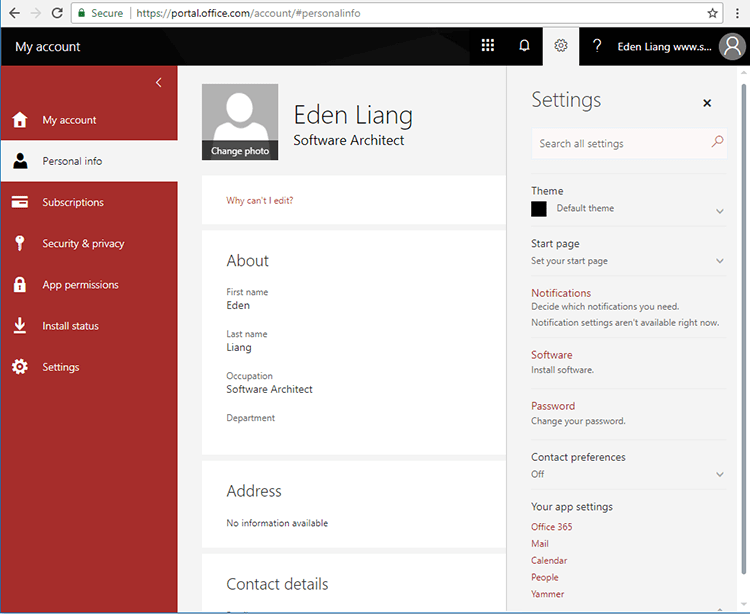
❌ Figure: The Office 365 cog does not show the language.
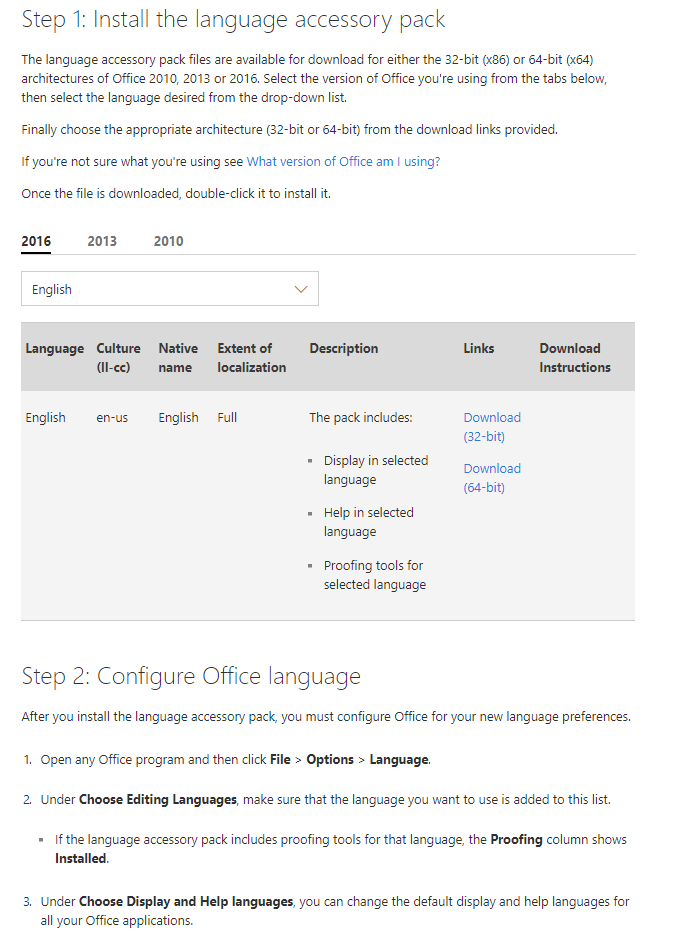
✅ Figure: If you do not have the English version. In Microsoft Office open the rich client application such as Outlook or Word, then install and configure as per the image above
Office 365 (outlook.office365.com)
- Go to outlook.office.com
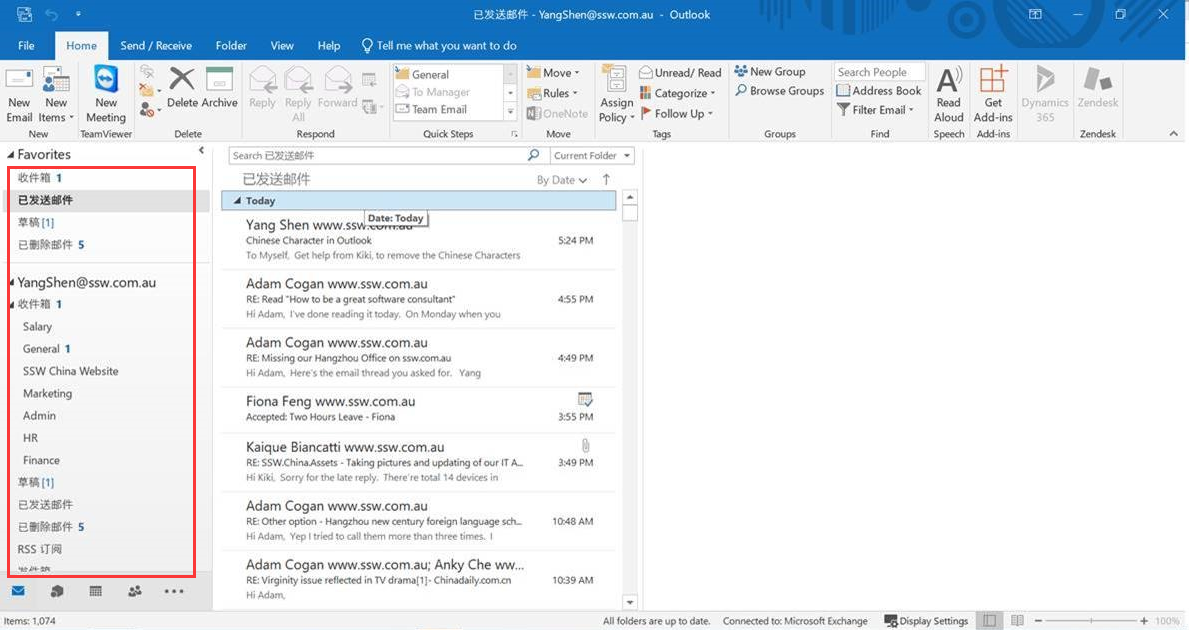
Figure: If you have the Inbox, Sent Items etc in Chinese then you will need to follow these steps
- Click on "My profile" in the top right corner
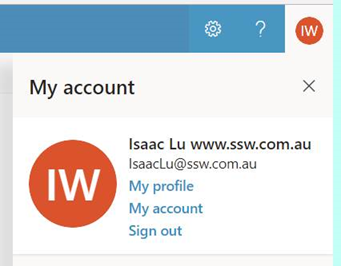
Figure: Choose 'My profile'
- Click on "setting" button
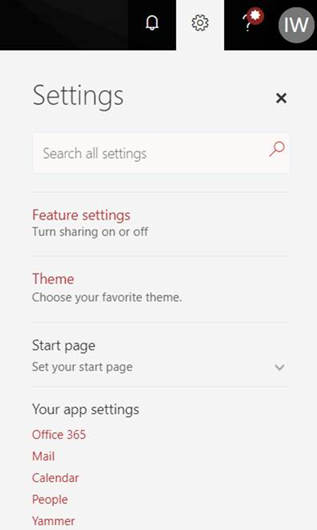
Figure: Choose 'Mail'
- Click on Region and time zone
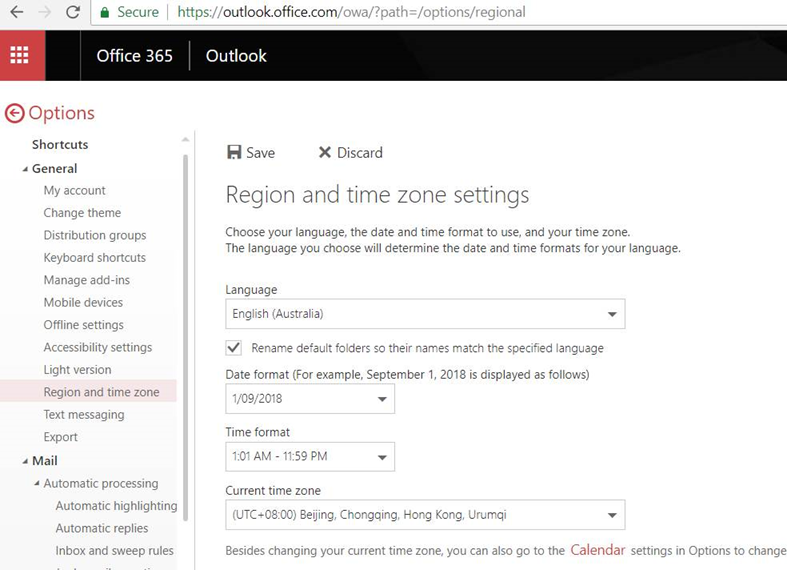
Figure: Choose Region and Time. Then when you change the ‘Language’ with the checkbox enabled, the problem will be fixed.
- In Windows 10, Go to Settings | Language | Windows display language, click Windows display language and search for English.
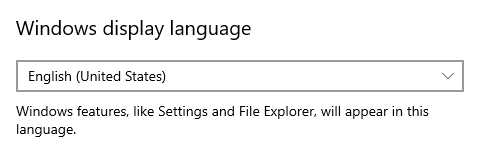
Figure: Set windows display language to English
- Go to Settings | Language | Region, click Regional format and select “English (United States)”.
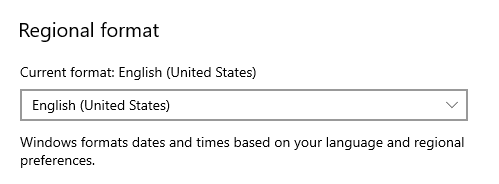
Figure: Set regional format to English
- In Outlook, go to File | Options | Advanced | International options, check "Use English for message headers..."
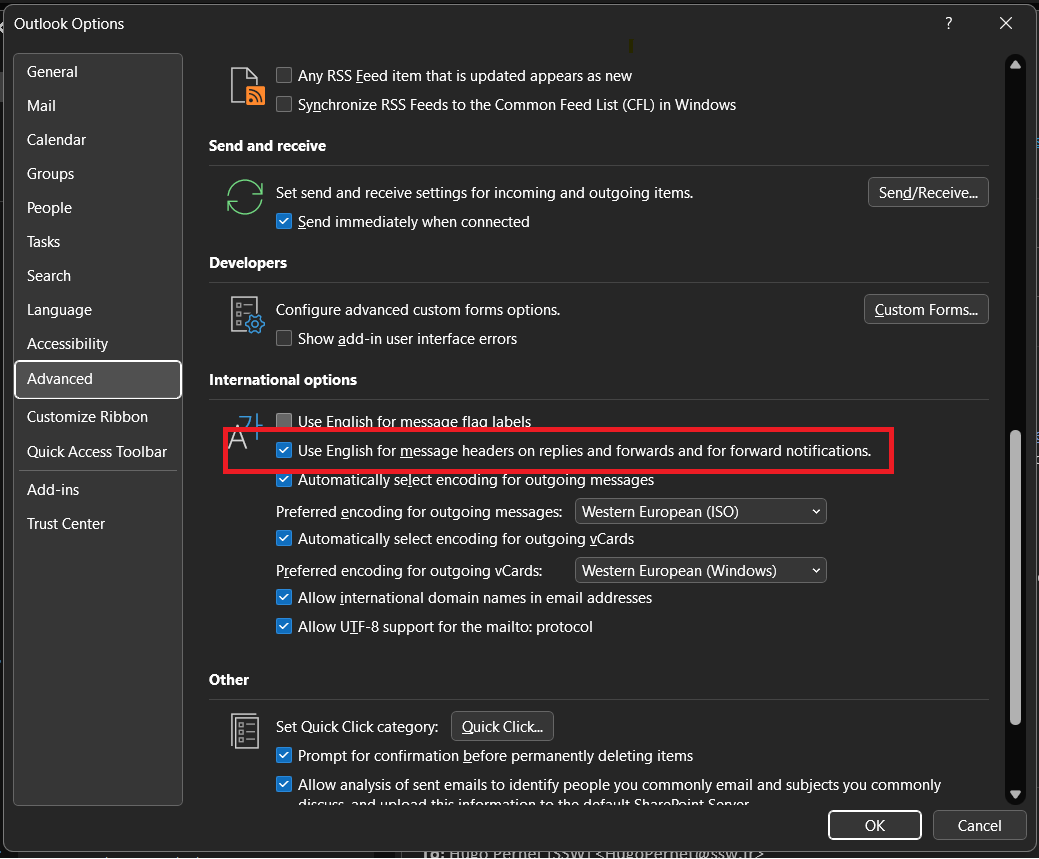
Figure: Force message headers to English
- Done. You have changed your language to English. Congratulations!
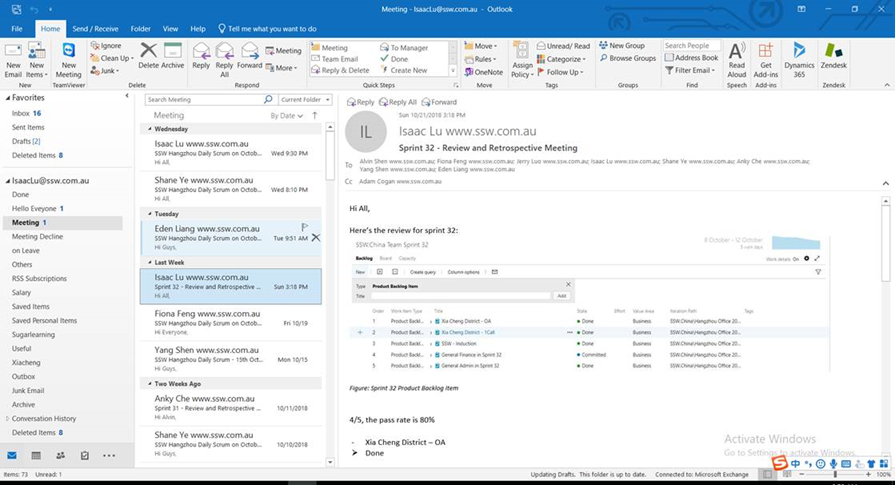
Figure: After completing the fix
Microsoft Teams
- Navigate to Microsoft Teams | Manage account
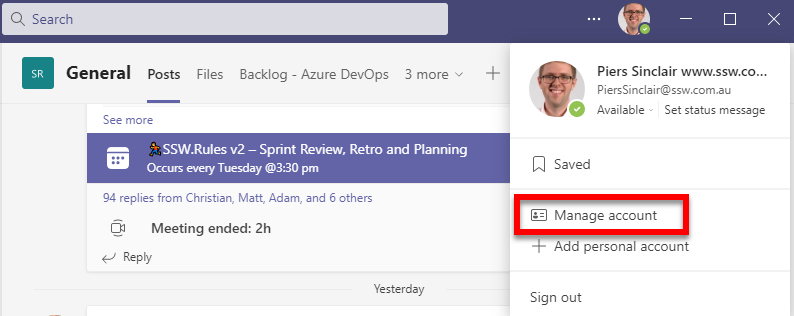
Figure: Navigate to Microsoft Teams | Manage account
- Navigate to General | App language and then select English from the dropdown
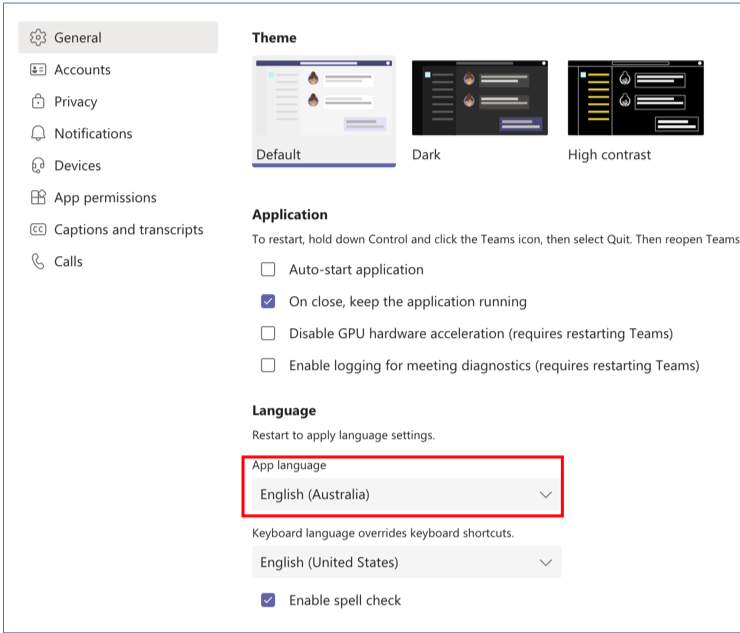
Figure: Navigate to General | App language and then select English from the dropdown
- Done!
iOS SharePoint App
- Change the language in System Preferences. Navigate to Settings | General | Language & Region
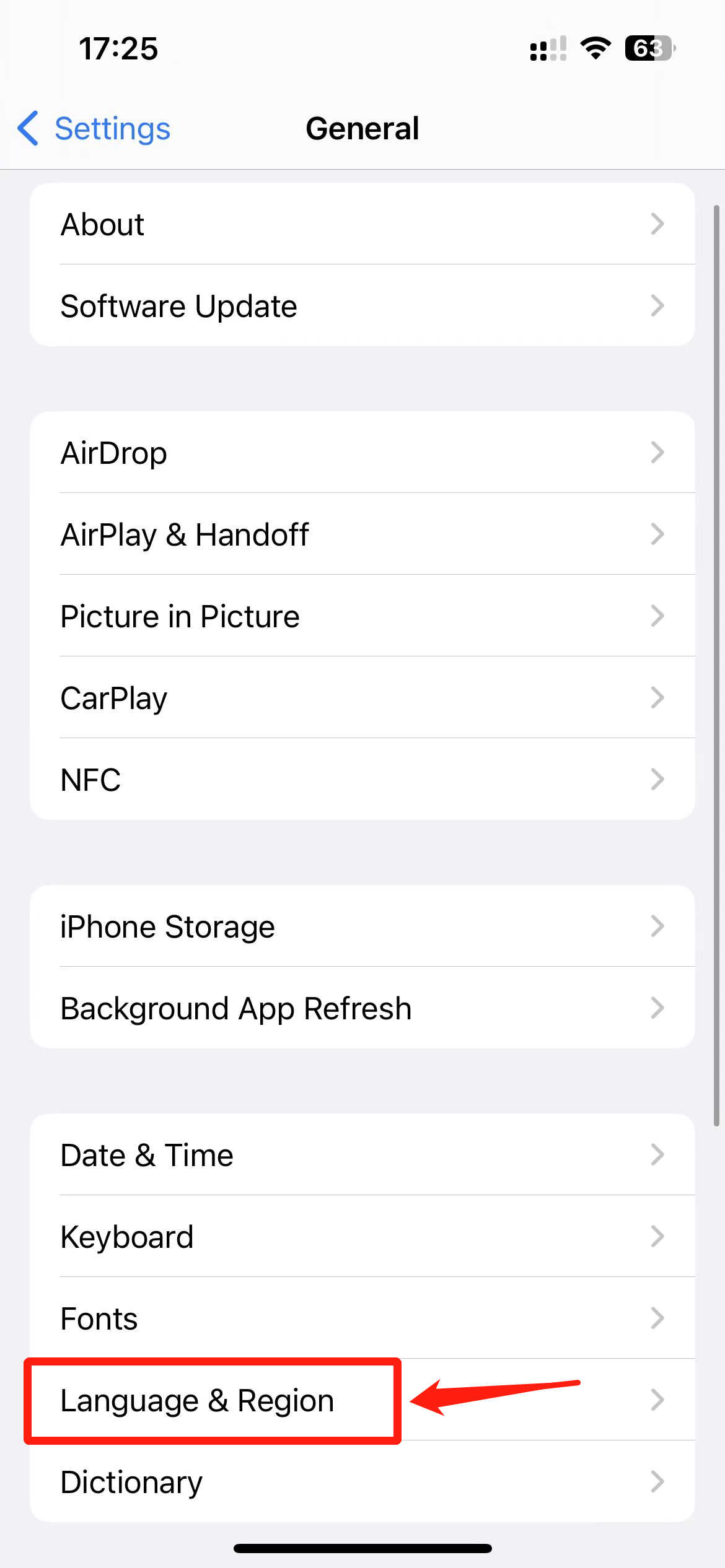
Figure: Navigate to Settings|General|Language & Region
- Drag English field to the top of the PREFERRED LANGUAGES list
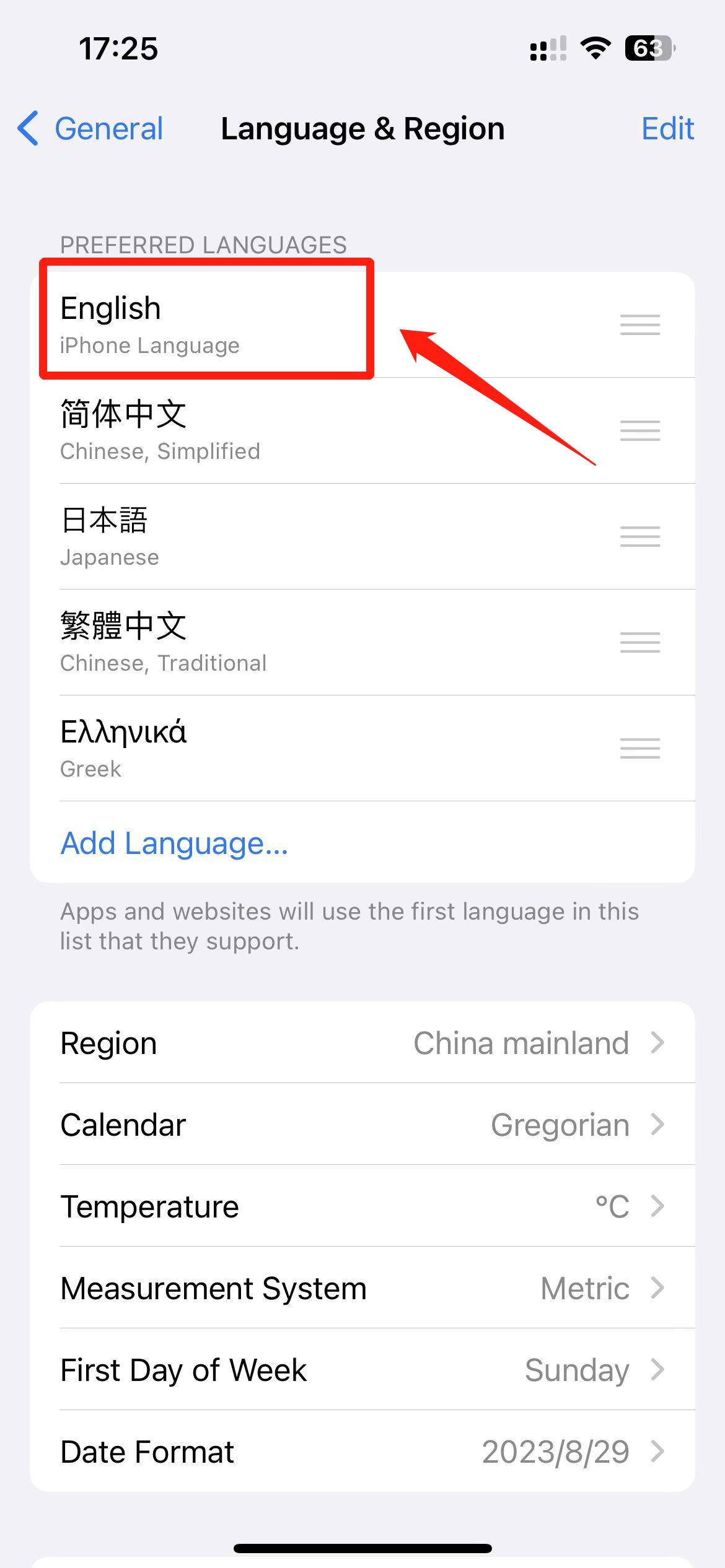
Figure: Drag English field to the top of the list
- Done!
Fix Your Personal Email - Netease Mail Box (Mail.163.com)
- Navigate to Mail.163.com | Setting and then select English from the dropdown
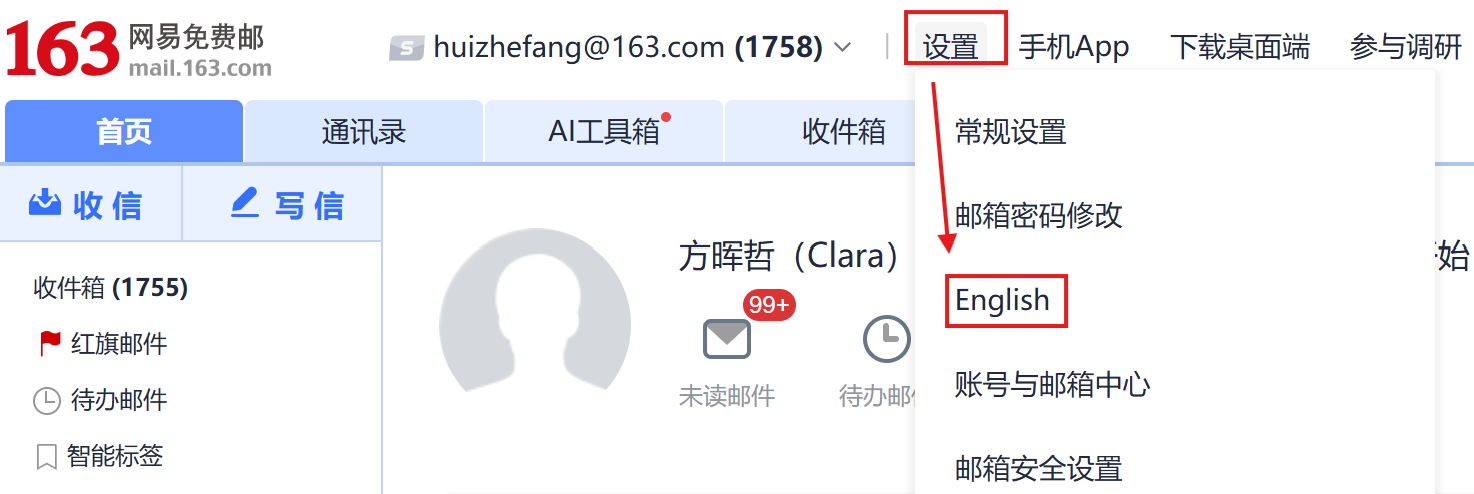
Figure: Navigate to mail.163.com | Setting and then select English from the dropdown
- Click on the name field next to the head portrait | Enter your English Name
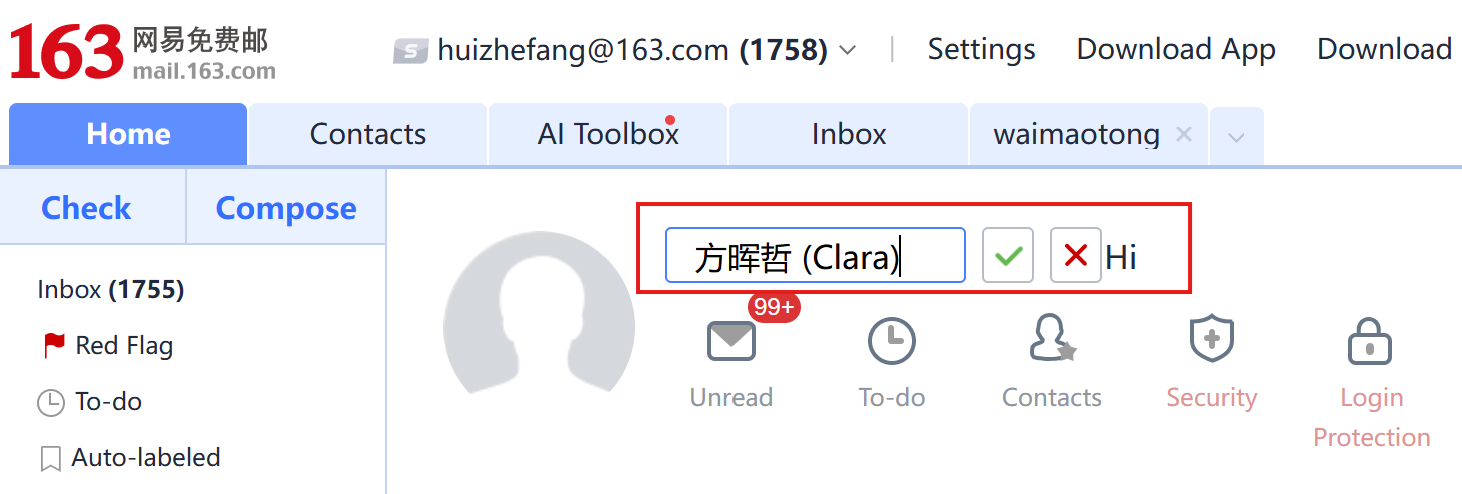
Figure: Enter your English name so your Western colleagues can read
- Done!
Fix Your Personal Email - Tencent Mail Box (Mail.qq.com)
- Navigate to Mail.qq.com | General | Profile | My Profile, click edit to add your English Name.
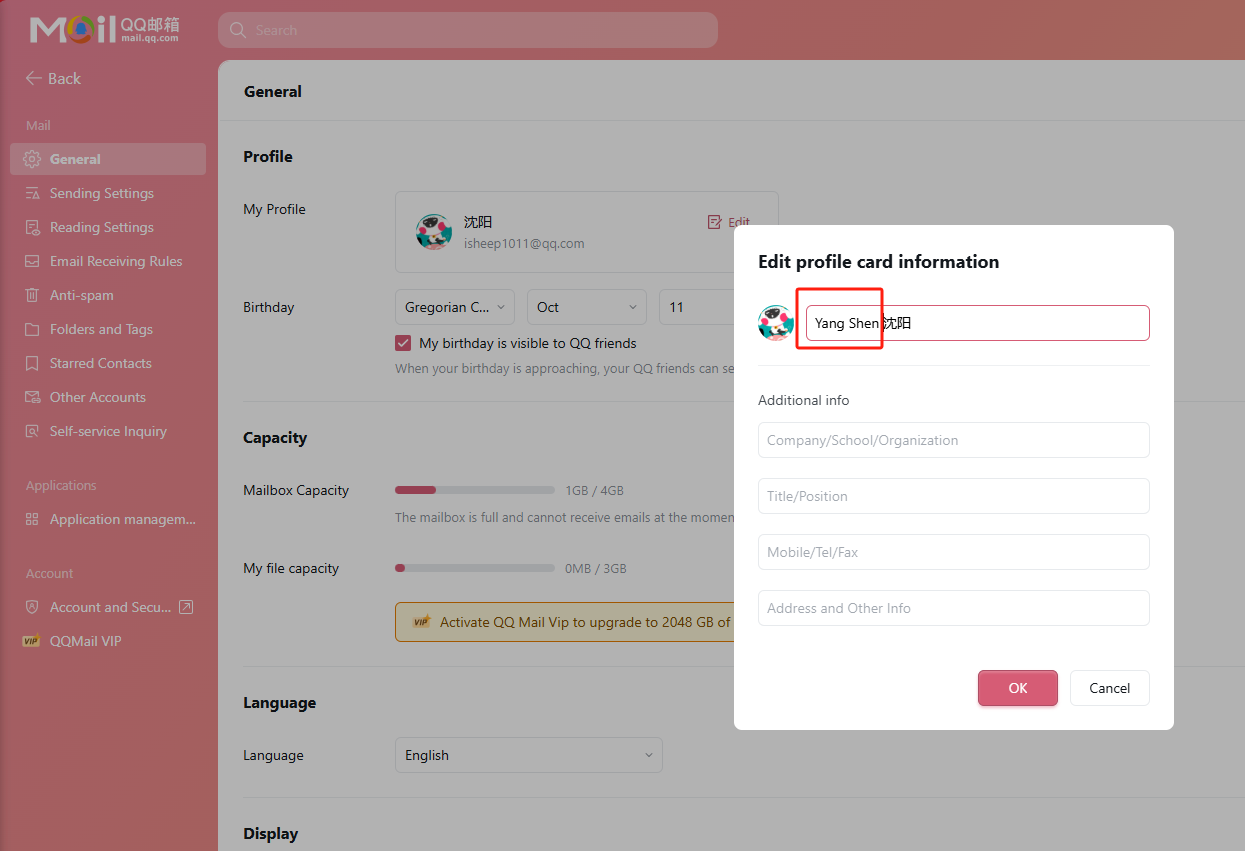
Figure: Add your English name in profile
- Navigate to Mail.qq.com | General | Language then select English from the dropdown
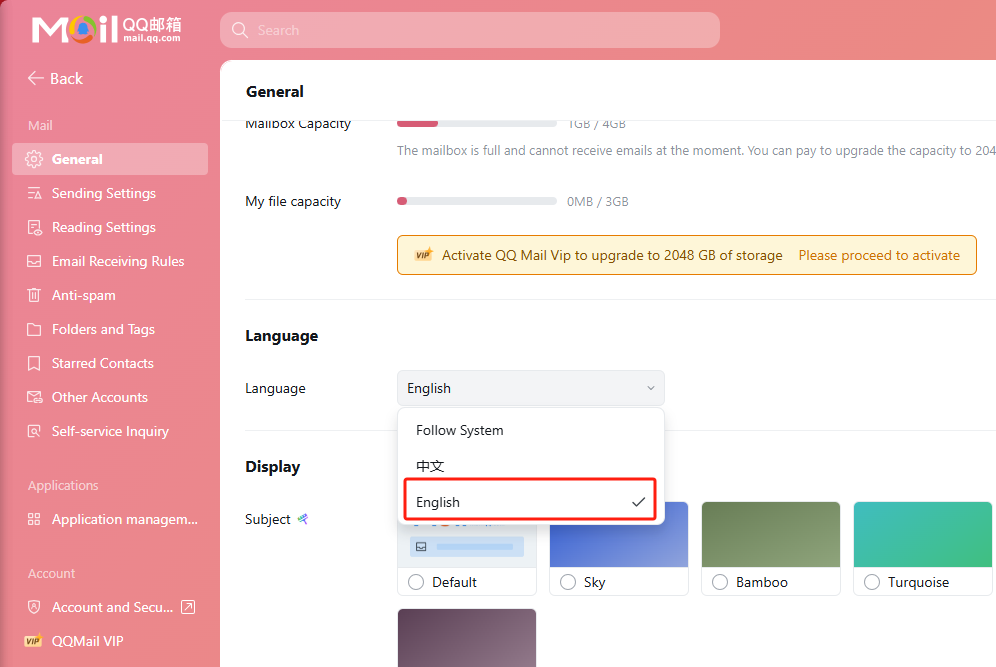
Figure: General | Language select English
- Done!