Need help with implementing a Virtualized Server Infrastructure? Check SSW's Hyper-V consulting page.
When SysAdmins first get going with Hyper-V, they often choose to use dynamically expanding VHD’s. They often do this to increase VHD creation time and reduce hard disk usage.
The problem with dynamically expanding VHDs is that they reduce the performance of the Virtual Machine. It is much better to use a fixed VHD when the Virtual Machine is used in a production environment.
Microsoft lists several recommended and supported network configurations. It is very important that you configure your Hyper-V Cluster with one of the supported network types otherwise you will have performance issues once you load up the cluster.
When creating a new VM, it is advised to always choose Gen 2 unless there is a specific reason not to. Some of the benefits of using Gen 2 VMs are:
- Secure Boot
- Faster Boot times
- Changes to Ram, CPU and VHDX can be made without shutting down
- Can support larger amounts or RAM and CPU
When formatting a new virtual disk you have attached to a Hyper-V Virtual Machine, you can choose to to format the disk as a Basic disk or Dynamic disk .
A Dynamic disk might be useful in situations where you want to create a software RAID array, but when using Hyper-V this not a good idea because it prevents Microsoft Data Protection Manager (DPM) from doing Child State Backups (backups while the machine is running).
For this reason, never use Dynamic disks inside Hyper-V Virtual Machines.
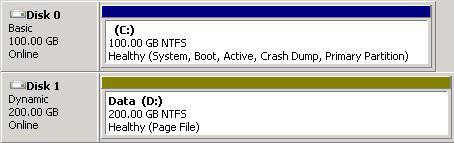 ❌ Figure: Bad Example - DPM cannot backup this Virtual Machine's child state as it has a Dynamic Disk
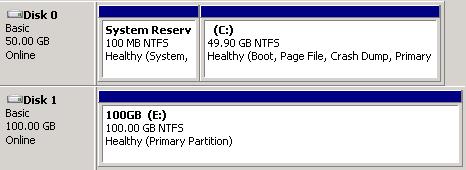 ✅ Good example – Using Basic Volumes allows DPM to backup the Virtual Machine’s child state
Occasionally when you estimate the size of a VHD that you will be using in a server, you can get it wrong and you will need to give the Virtual Machine some more space. Instead of adding a bigger data disk in the Virtual Machine and migrating data, you can expand the existing disk.
When you configure Hyper-V Clustering, each node will have upwards of 4 network adapters, some virtual and some physical. It is important to give these adapters meaningful names so you know what network adapter does what.
When your Hyper-V environment is spread across multiple hosts and contains many Virtual Servers, it can get very confusing to find the one you are looking for amongst them all. This is why you should use a standard naming convention for all your Virtual machines.
If you need to move a virtual machine from one Hyper-V server to another, you should using the Hyper-V Managers export option rather than just moving the VHD files.
If your machine has snapshots and you copy them rather than export them, it can cause issues with the VHD’s and AVHD’s (Snapshot VHD’s) because Hyper-V does not know there has been a snapshot when you load it onto the new Hyper-V Host. You also lose the settings for your Network Adapter, like its static IP address.
Snapshots are a very easy way to back up a system before a big change is made. They can also be easily restored if something goes wrong during the change.
Snapshots are a very handy tool for a System Administrator, but they can quickly turn into a nightmare if they are not managed properly. Snapshots take far more hard drive space than a virtual machine without, and if you don’t clean up your snapshots you may run out of drive space.
per page
1 - 10 of 17 itemsper page
1 - 10 of 17 items