Do you triage your support tickets?
Loading last updated info...
As a SysAdmin, triaging support tickets efficiently is crucial for streamlining the ticket management process. It is important to have a clear process for triaging tickets, including the fields that need to be populated when a ticket comes in.
In Zendesk, you can create a view for triaging tickets - for example, create a view showing all unsolved tickets that have not been assigned to anyone.
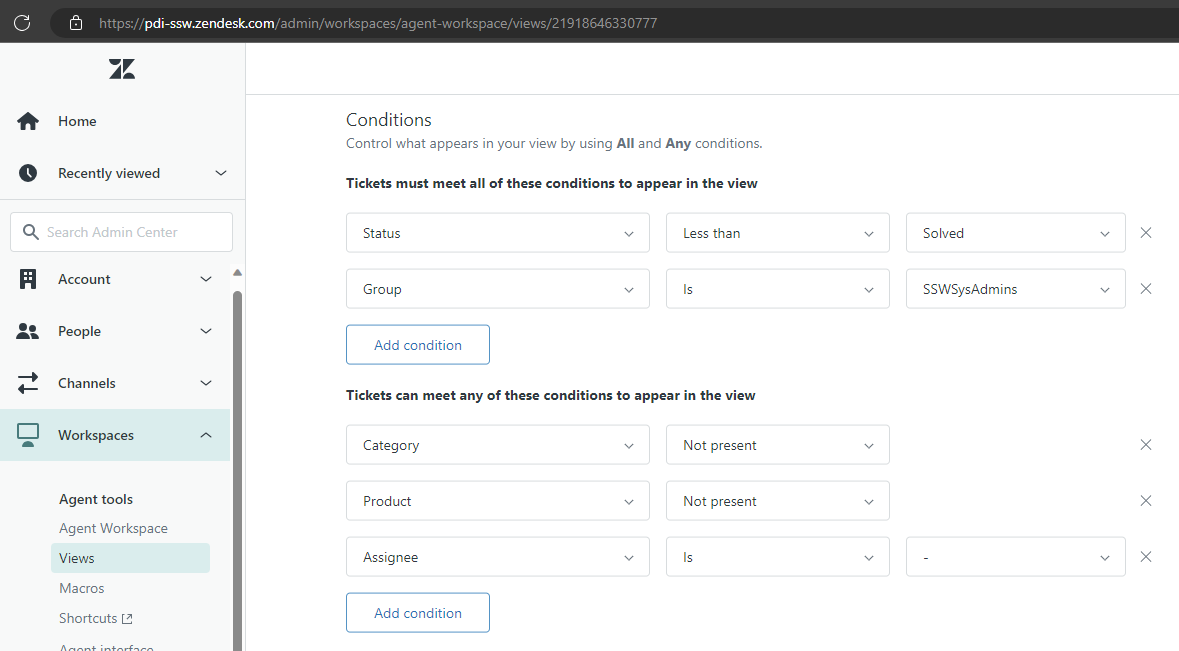
Figure: Zendesk triage view configuration
To triage tickets
- Assign the ticket to the right person
- If the ticket is addressed to an individual, the ticket should be assigned to that person.
- If not, assess the ticket's technical requirements and identify the relevant subject matter expert.
It's OK to reassign the ticket if needed - but have a conversation first, and document the reason for the reassignment.
- Add a Category
- Tickets should be categorised so that useful reporting can be done.
- Categories could include: User Access, Security, Feature Request, Recurring Tasks.
- Add a Product
- Similarly, reports will be greatly enhanced if you can determine how much time is being spent on different products.
- Products could include: Azure, CRM, SharePoint, Zendesk.
- Add a Priority
- Determine the priority level based on the impact, urgency, and predefined guidelines.
- Use a standardised priority system (e.g., low, medium, high, critical) to ensure consistent assessment.
- Split the ticket if needed (rare)
- If the ticket contains tasks for multiple people, or if it contains multiple big project tasks, you might choose to split the ticket into 2 or more smaller tickets.
You may choose to add other fields that are relevant to your environment.
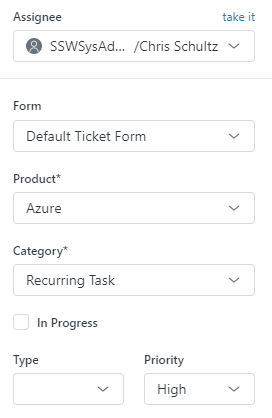
Figure: Triaged tickets should have an assignee, category, product and priority.