Videos - Do you use Premiere Pro Markers as YouTube Chapter Links?
Loading last updated info...
Video producers are consistently creating YouTube Chapter Links for videos such as the User Groups, Tech News Videos etc. This helps users to go to an specific section of the video.
In the past, this has been a manual and tedious process. However, this is no longer the case!
The fastest method is the Auto Chapter Links method (see below)

Figure: Good example - Chapter Links created for a Tech News
How to use the Auto Chapter Links method
This method is basically exporting Adobe Premiere Pro Markers as YouTube Chapter Links.
Make sure you know which hotkey in Premiere Pro hotkey is for markers. The default is set to ‘M’ on your keyboard.
- Add an Introduction Marker (00:00). YouTube requires every video to have an introduction marker if you want the chapter links to take effect.
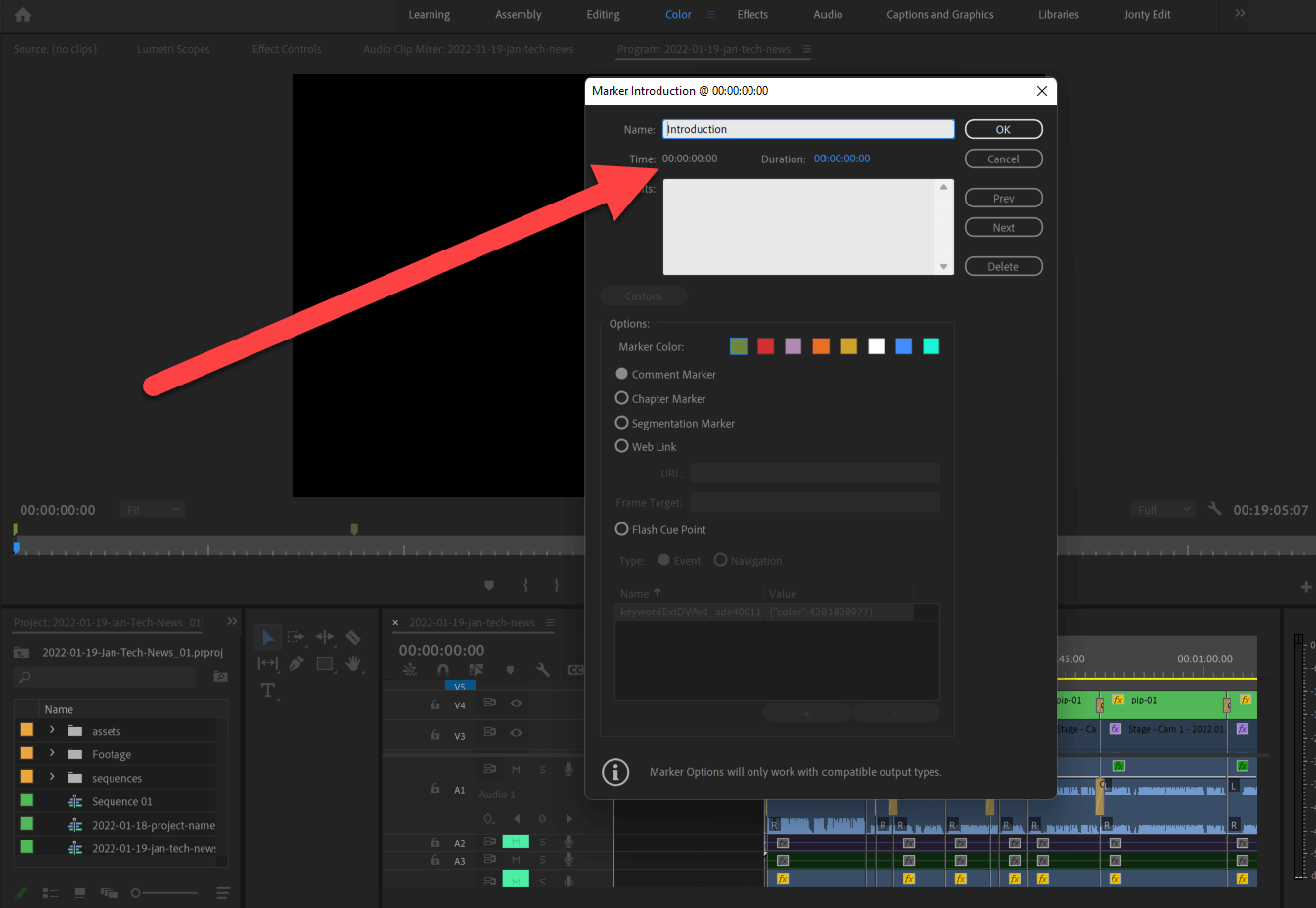
Figure: Introduction marker for 00:00
- Create your chapter markers for every new topic/section in the talk
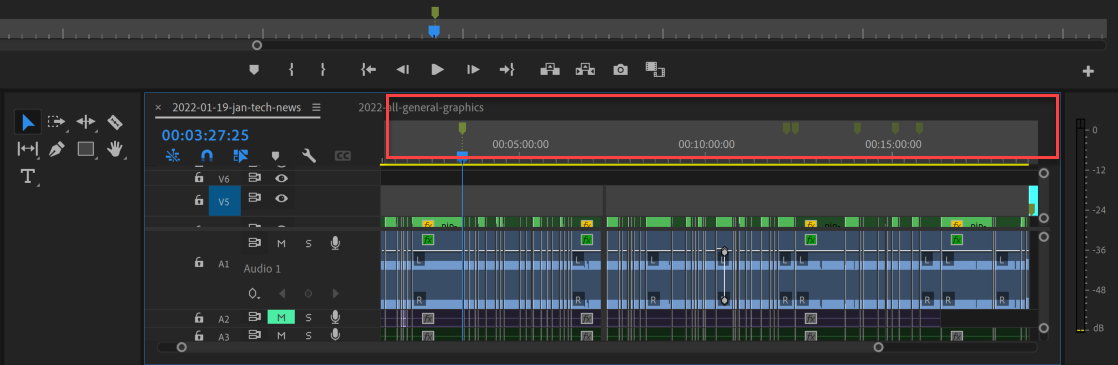
Figure: Markers appear above the timeline
- Select your sequence | File | Export | Markers

Figure: File | Export | Markers
- File type – CSV | Destination – Export Folder
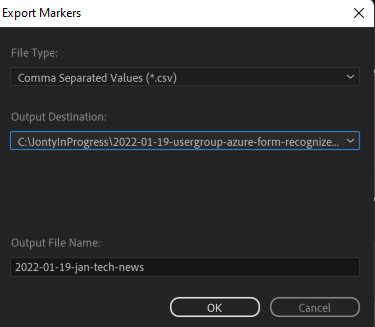
Figure: It is good practice to save it to an export folder
- Click on this spreadsheet to find the Premiere Markers to Youtube Annotation (Sample)
- Make a copy of this excel spreadsheet and save it in your google drive

Figure: File | Make a copy | Save in your Google Drive
- Copy the text from your Premiere Pro exported CSV file
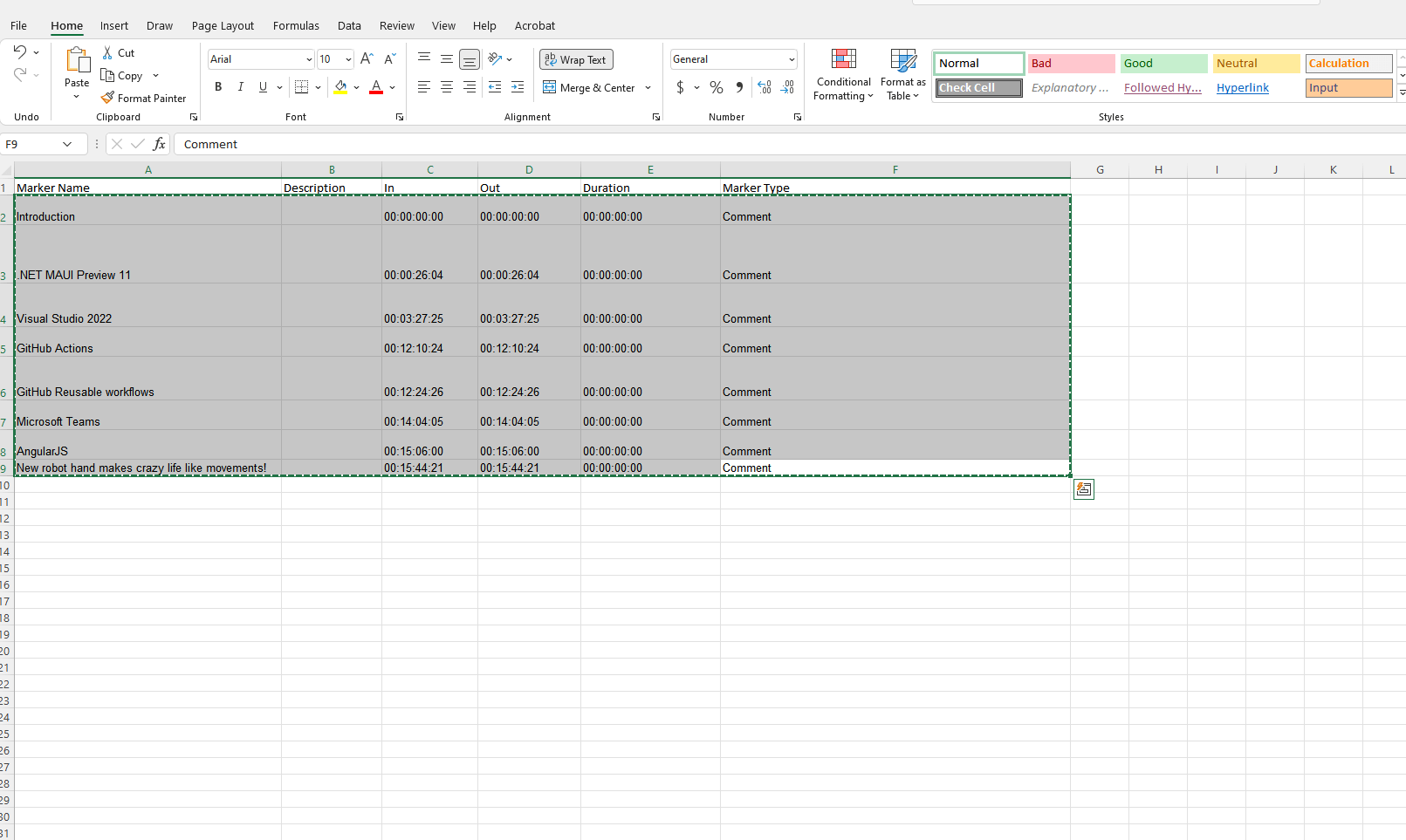
Figure: CSV file exported from Premiere Pro
- Paste the text into your copy of the Premiere Markers to Youtube Annotation excel spreadsheet
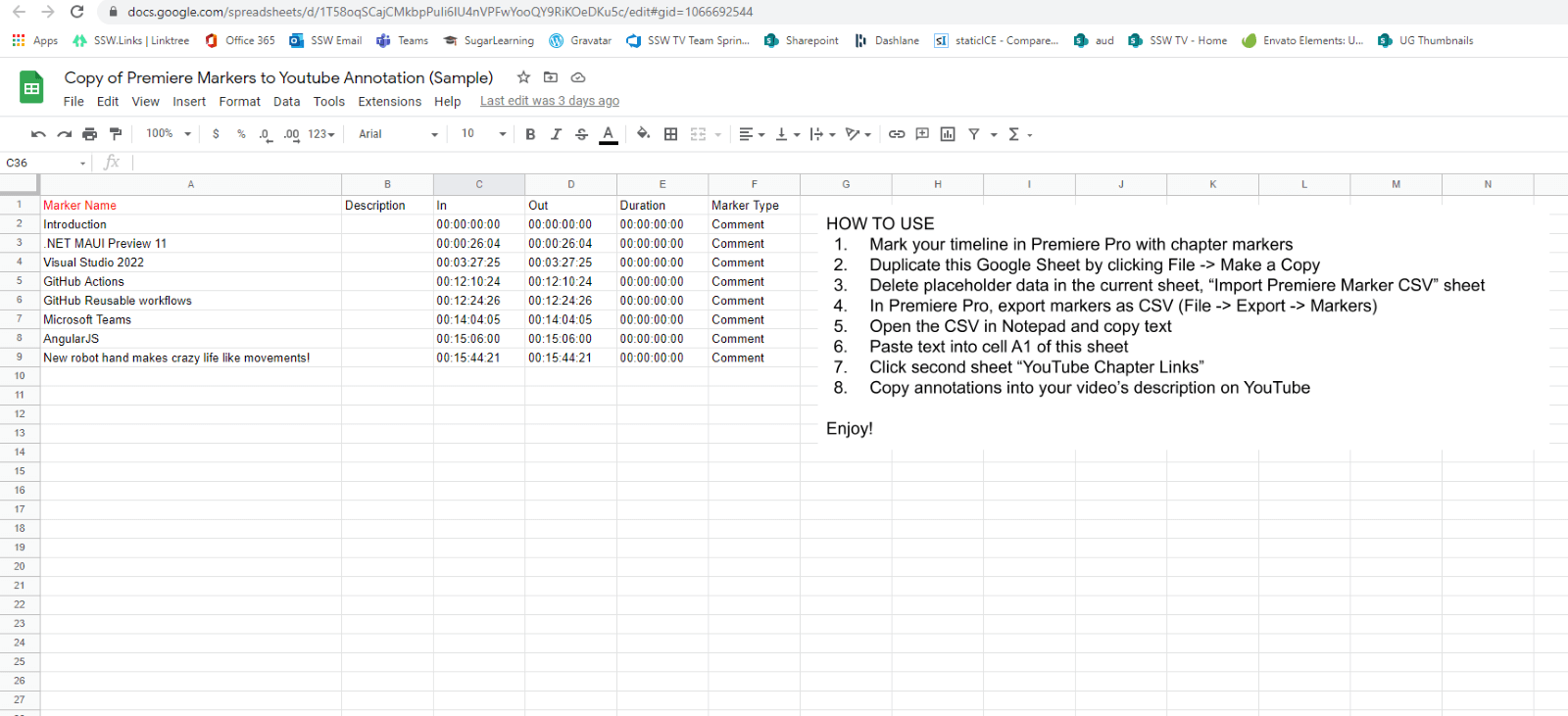
Figure: Paste text into cell A1 of this sheet
- Click over to the Output: YouTube Chapter Links and copy the relevant content

Figure: Click the second sheet “Youtube Chapter Links”
- Paste into your YouTube video description
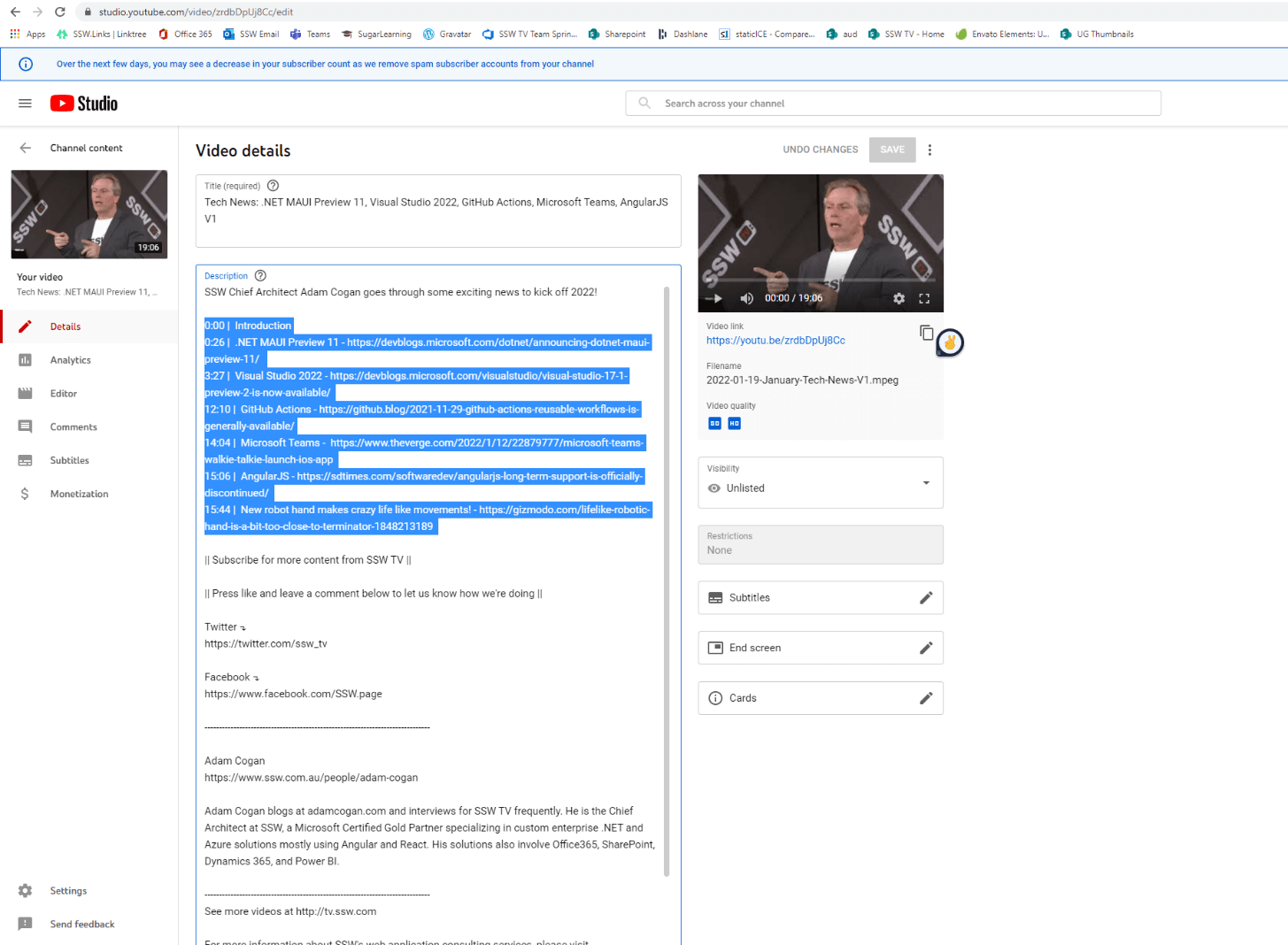
Figure: Editing the description of a YouTube video
- The description should look as such
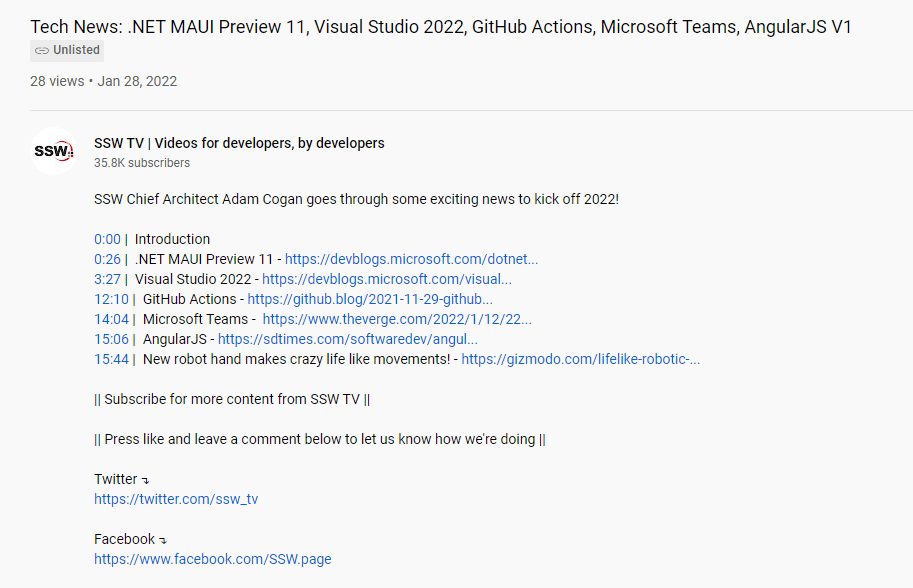
Figure: YouTube Chapter Links
Note: The website links were added afterwards manually