Microsoft Teams offers a great solution to collaboration using the Office 365 platform. Get ready for a productivity boost, better focus on your work, and increased transparency.
Need help with implementing Microsoft Teams? Check SSW's Teams consulting page.
Microsoft Teams is a great tool for a group of people to collaborate, communicate and share their files.
Teams makes it easy to:
- Centralize communication
- Send emails to Team members easily and quickly by providing a global email address for the Team
- Move away from email attachments and centralize documents
Effective communication with your clients on Microsoft Teams builds credibility, trust and ensures they receive the deserved attention.

Figure: Keeping Teams at the centre of client communication
Client Teams should be prefixed with “Client –“ so it is easier to identify them.
It's usually easier for users to remember where given information is when it is associated with an image/icon. This is especially true for non-technical people or those who are not very familiar with digital workspaces.
Teams is a powerful way to chat, collaborate, and video call with your project team. As soon as you start a new project, create a group chat with all the team members (potentially including the client if appropriate).
Although you will also have a dedicated Team (as per SSW.Rules | Do you know how to create a Team?), which is great for storing documents and files, as well as persisting notifications, you’re better to communicate in a chat rather than a channel.
✅ Pros
- You will be actively notified of new messages
- The conversation flows more naturally (rather than threaded)
- You can quickly call the whole team into a video call
❌ Cons
- People cannot add themselves to a chat so will need someone on the team to add them
- In larger teams, the lack of conversation threading may become an issue
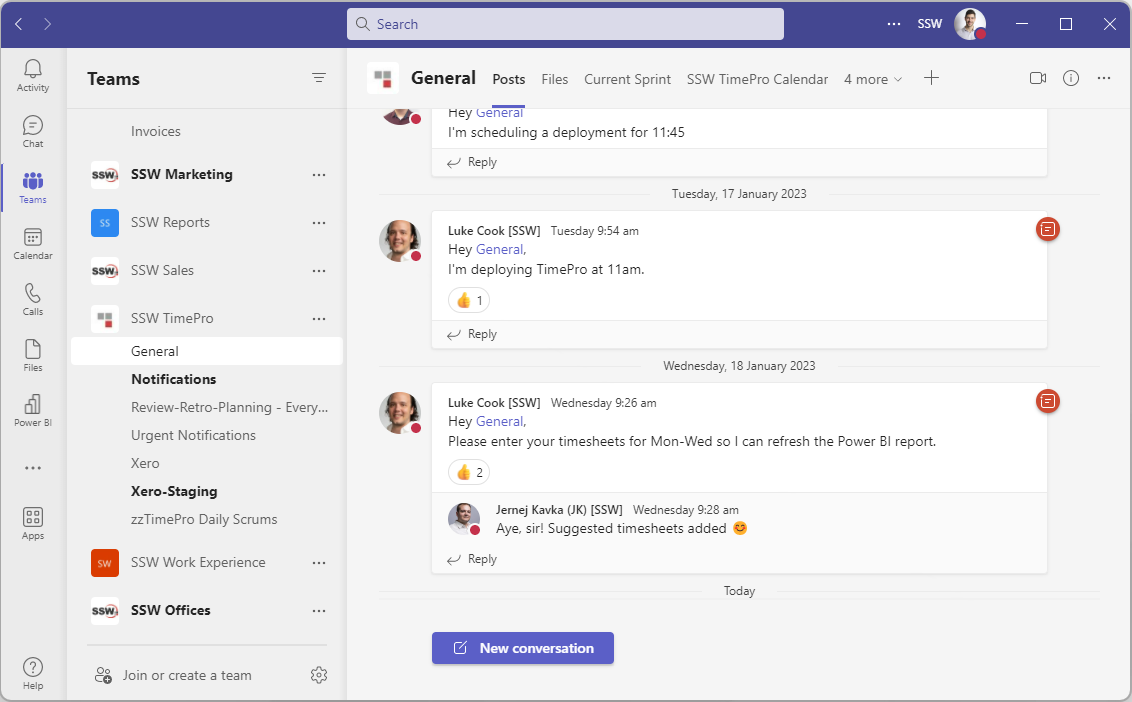
❌ Figure: Bad example - Teams | Posts in Teams channel
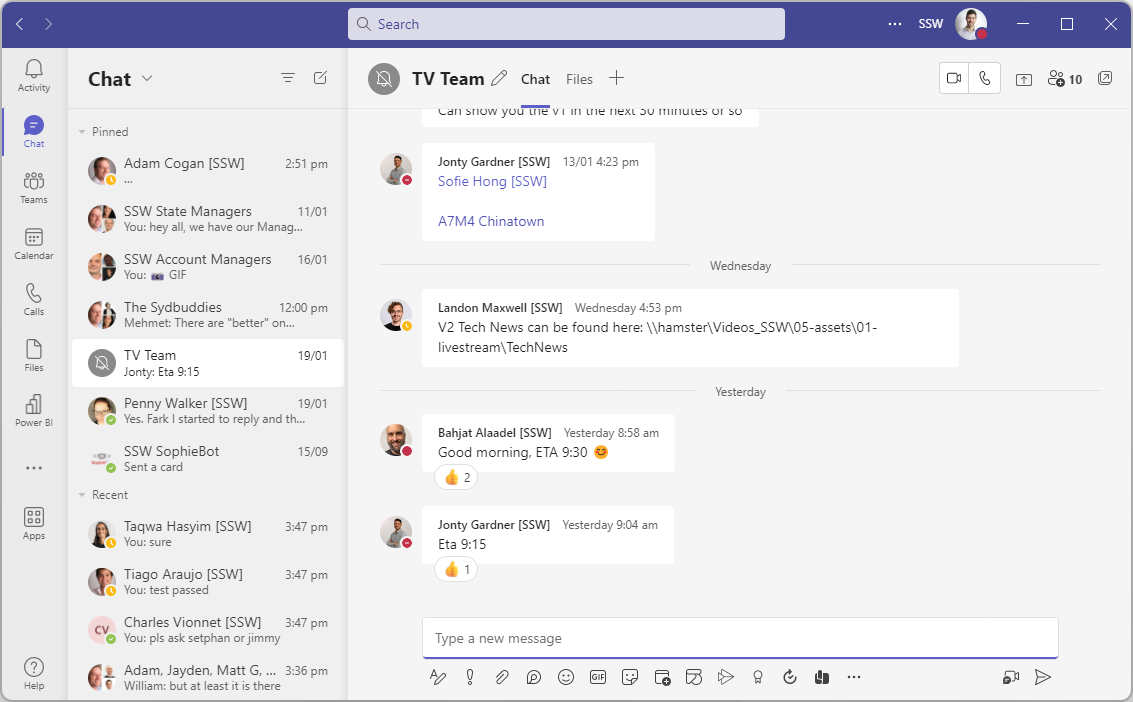
✅ Figure: Good example - Use normal chat group for Team members
💡 Tip: You often need to add someone to a chat, and sometimes it's a good idea to share all history with them to provide context. However, sometimes the contents of a chat can be sensitive and shouldn't be shared. In this cases you should think carefully before adding someone to a chat, and doubly so before sharing history with them.
To make these sensitive chats easier to identify, rename them something appropriate (that doesn't give away the sensitivity in case you're sharing your screen), and use a padlock emoji (🔒) at the start of the chat name as a mental shortcut to indicate not to share it.
Group calls are made for important discussions to be had, and distractions can derail them. Ever been in a group call where someone just vanishes? It's confusing and can mess up the flow of conversation.
Using the "Meet Now" button in Microsoft Teams can be an efficient way to start a quick meeting with your team. However, it's important to know when to use it to avoid disrupting your colleagues. Triggering an unplanned call can catch people off guard and disrupt their workflow, leading to frustration and decreased productivity.
Sending appointments from Teams feels less natural than from Outlook but there are some great benefits:
- Appointment - You don’t need to remember everyone’s name - The whole team is invited
- Appointment - In the appointment, it auto-generates a link so that everyone goes to the right place to attend
- Visibility - It shows up in Teams Calendar
- Visibility - It appears in the Teams chat (for the channel that was invited)
- Visibility – When the appointment is beginning the app pops up with a button to “Join”
- History - If you decide to record the meeting, the link to the recording shows up in the chat history as well
Important: Although the meeting app works great to organize Teamwork such as Scrum meetings or other client meetings, it is not very suitable for more global events such as a retreat or a conference. At SSW we use Microsoft Outlook appointments in those instances.
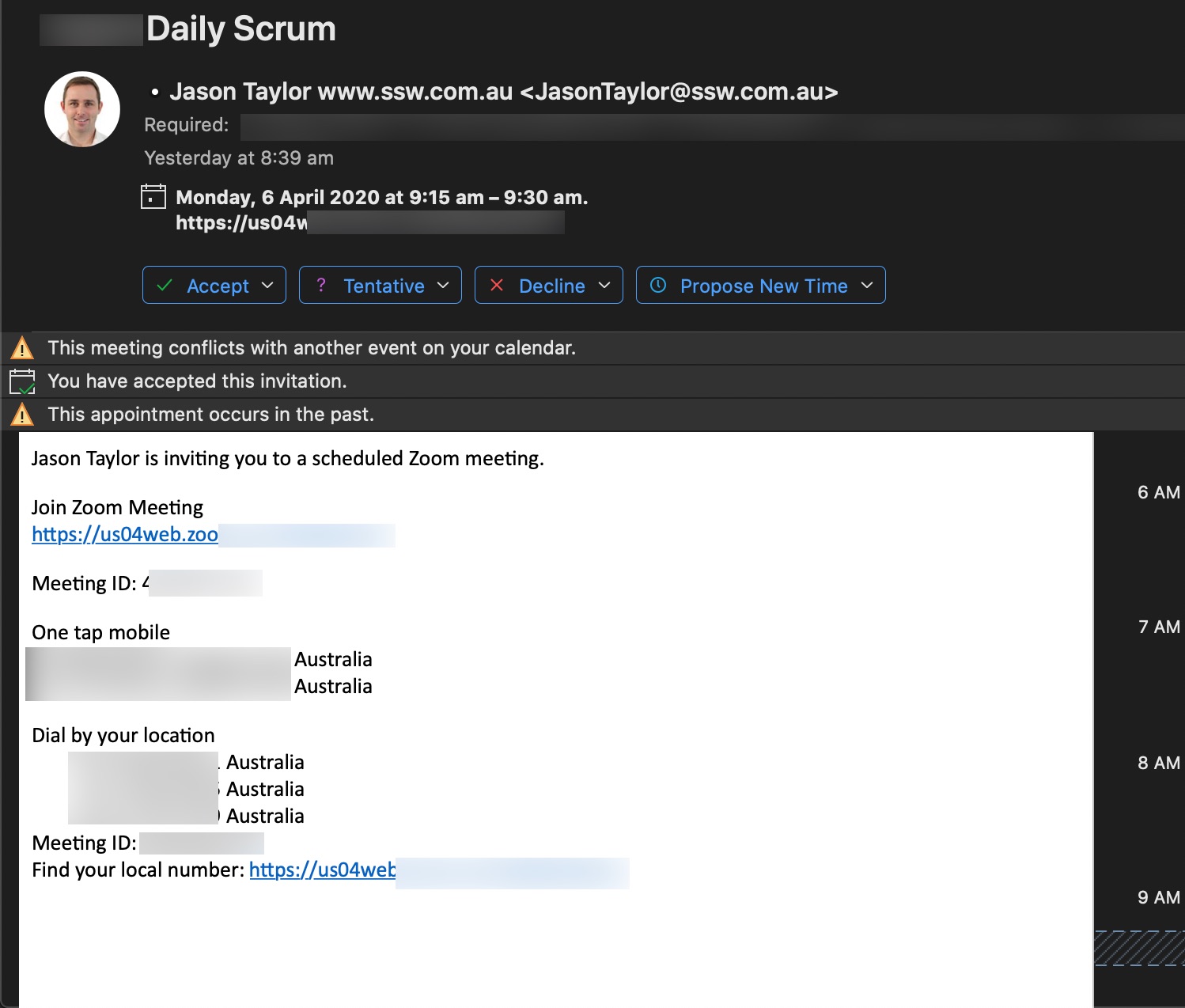
❌ Figure: Bad Example - This appointment was created using Outlook using Zoom - the team members needed to be added to the appointment individually and there are too many options on how to join the meeting.
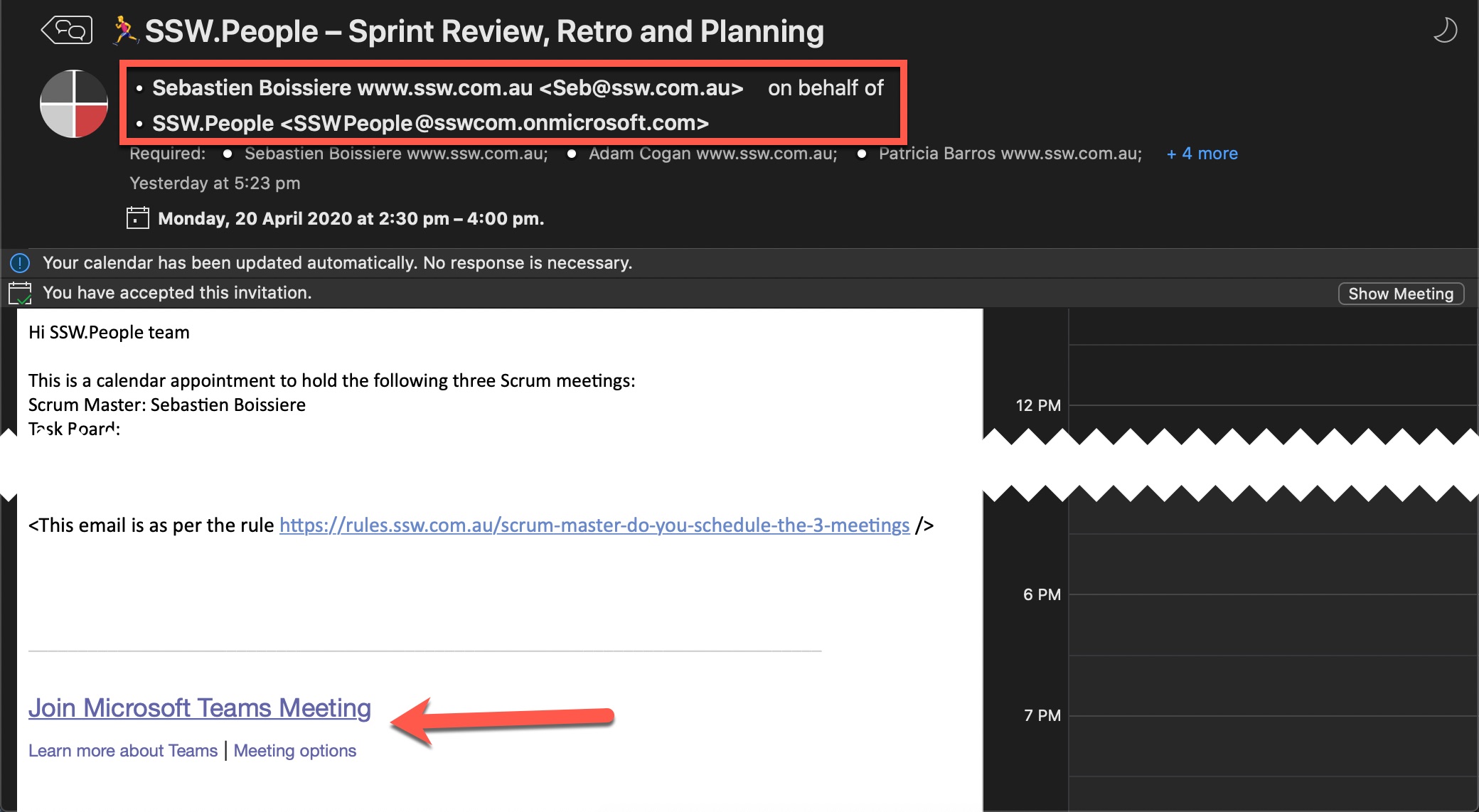
✅ Figure: Good Example - I know this appointment was created in Microsoft Teams since it was created on behalf of the team (see sender) and at the bottom it has a link so that people can click and join the correct meeting (even without Teams installed)
When a developer joins a team, they need to find important meetings like the Daily Scrum and the Sprint Review. Unfortunately, these meetings are often organized by a team member and there is no way to find them.
Ideally, a new team member would jump into Microsoft Teams and find the team they are joining. Then they would see all the important meetings from within the team and join them as needed.
From then on, they would be able to see those appointments in Microsoft Outlook and edit them as needed.
Teams Meeting chats are only visible to people who were invited to the meeting. If someone joins late or isn’t invited, they won’t see the previous conversation.
If others need to be part of the discussion or you want to continue the conversation after the meeting ends, create a group chat instead.
per page
1 - 10 of 42 itemsper page
1 - 10 of 42 items